Developing STM32 and 51 Microcontrollers Using Visual Studio Code - Using VS Code as an Editor for Embedded Program Development
Video Tutorial: https://www.bilibili.com/video/BV18e4y1H7xX/
Electronics/Microcontroller Technology Exchange Group: 2169025065
Introduction to VS Code
Visual Studio Code is a lightweight yet powerful source code editor developed by Microsoft. This software is free and open-source, runs on your desktop, and is available for Windows, macOS, and Linux. It has built-in support for JavaScript, TypeScript, and Node.js, and features a rich ecosystem of extensions for other languages (such as C++, C#, Java, Python, PHP, Go) and runtimes (such as .NET and Unity).
If you dislike the development interface of Dev or the slow startup of Visual Studio projects, then you should try using VSCode to write C/C++ programs. Because it is efficient, concise, and effective enough.
As a user of 51 microcontrollers or STM32 microcontrollers, Keil has always been one of our essential tools. However, some issues with Keil have always existed, with the most criticized being its single-function editor, weak code hinting capabilities, and unfriendly support for Chinese. Of course, some aesthetically-minded friends also say its interface is ugly. VS Code, as a user-friendly editor from Microsoft, has always been loved by programmers. Now we can develop for 51 or STM32 on VS Code by installing plugins. The method is as follows.
Software Installation
You need to install Keil and VS Code first. How to install them won’t be discussed here, please search on Baidu yourself.
VS Code Official Website: https://url.zeruns.com/6y6RD
Keil5 Download Address: https://url.zeruns.com/usV3e
Change Language to Chinese
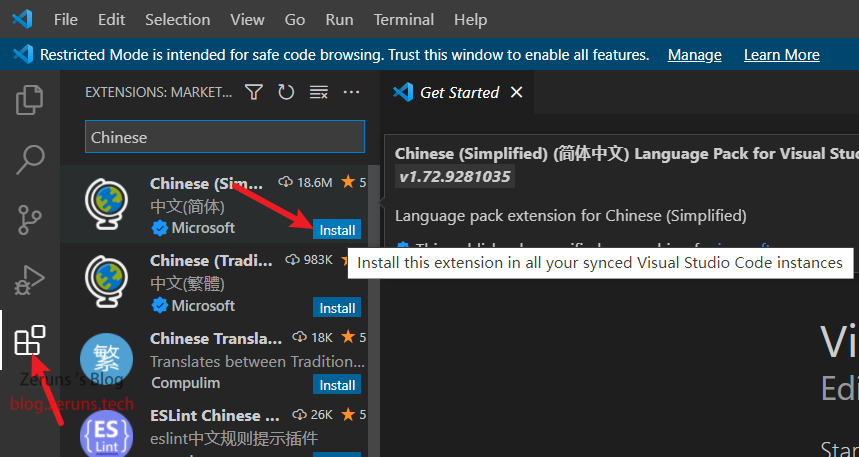
Open VSCode and click the Extensions icon on the left (as shown in the image below), type “Chinese” in the search bar, install the first extension plugin, and restart VSCode after installation to change it to Chinese.
Install Extension Plugins
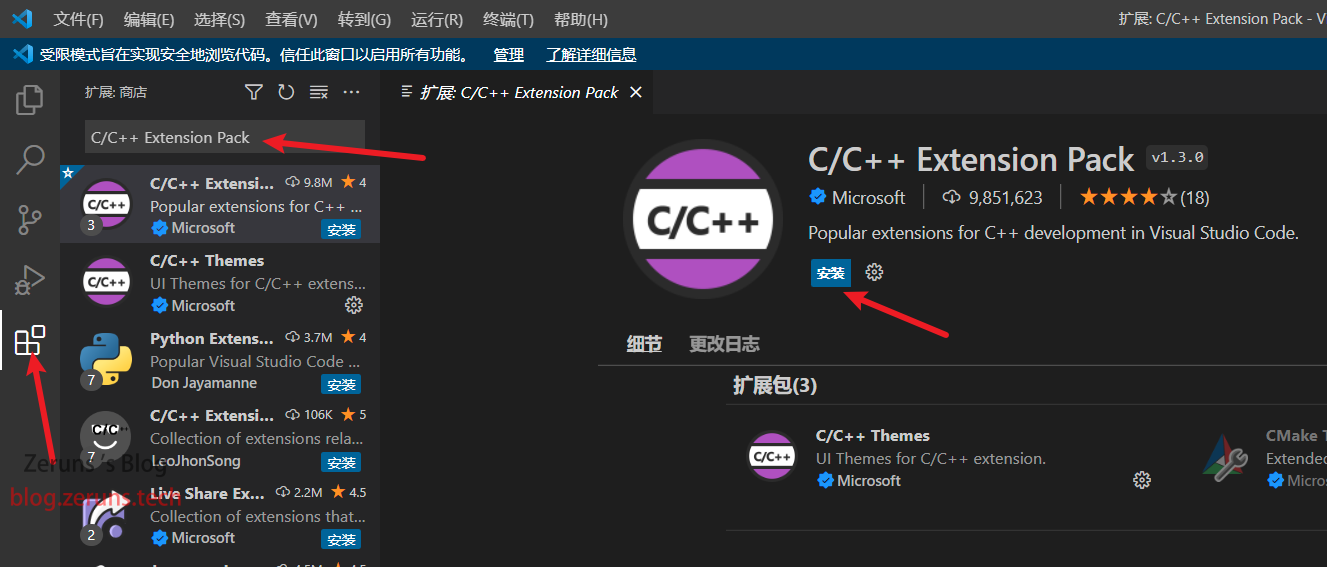
First, install the C/C++ Extension Pack extension.
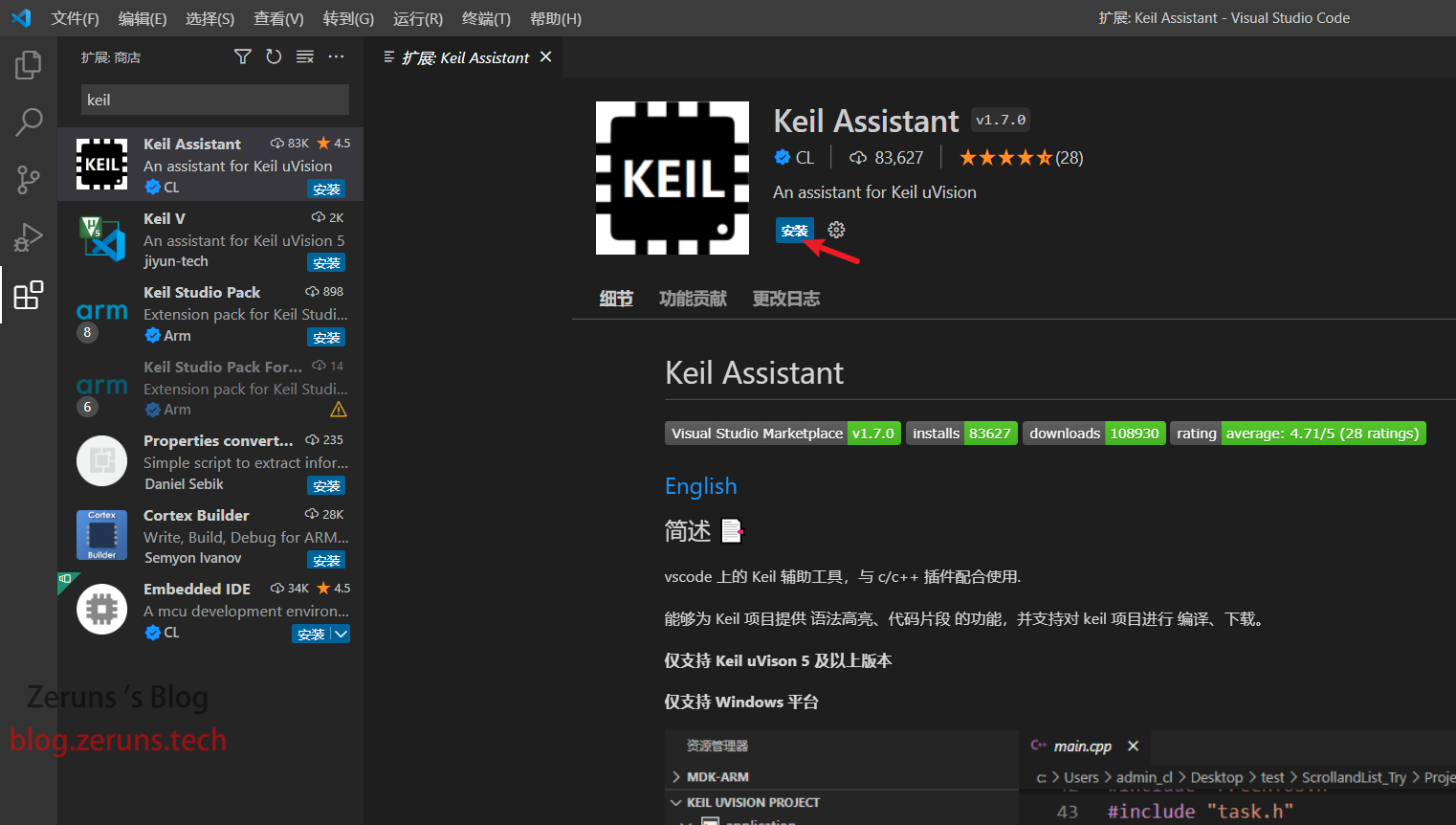
Install the Keil Assistant extension.
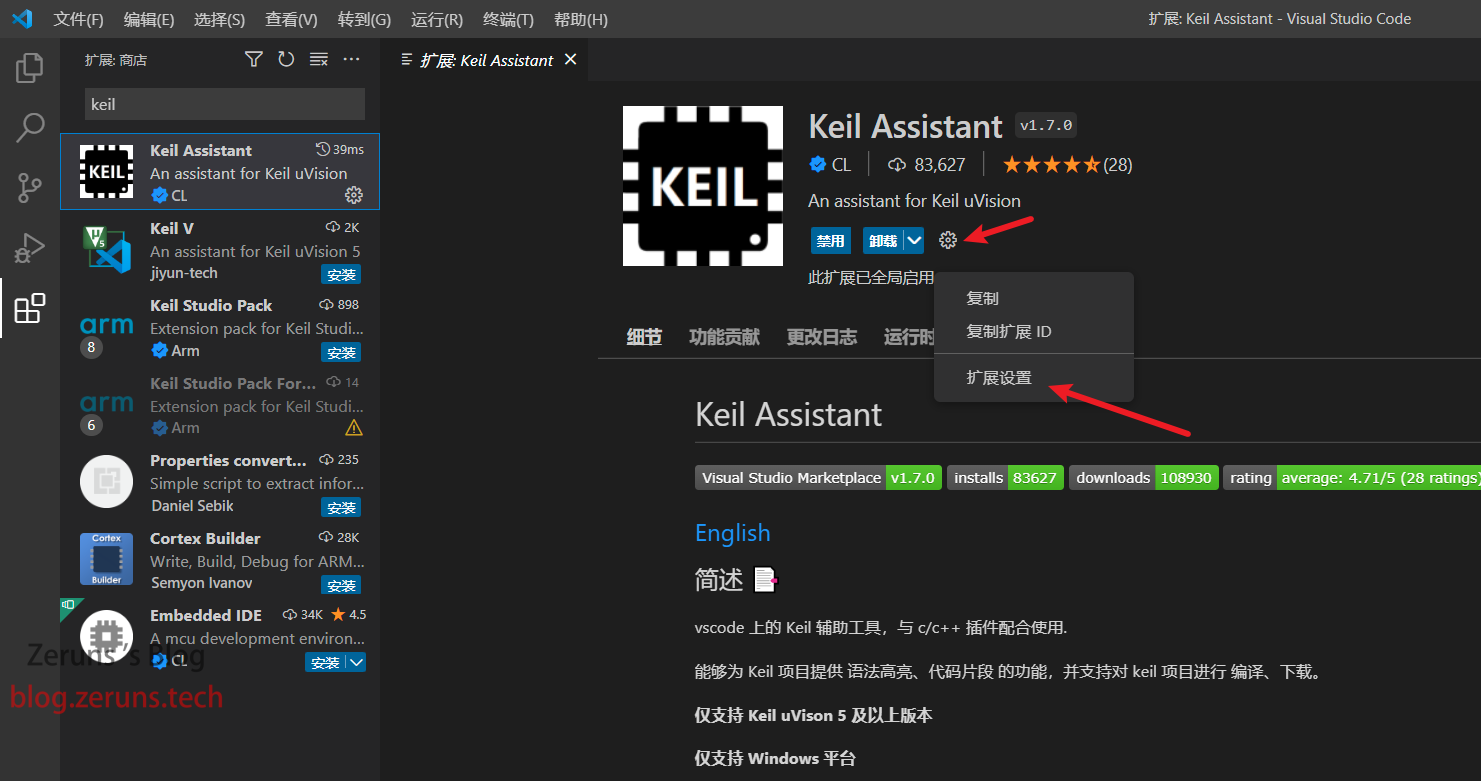
After installation, click on the extension settings.
Add the path to the Keil executable file. There are two paths here, the top one is for C51, and the bottom one is for MDK. You need to fill in the directory where your Keil is installed, refer to the image below. I installed C51 and MDK together, so both can be filled with the same address. If they are installed separately, they need to be filled in separately.
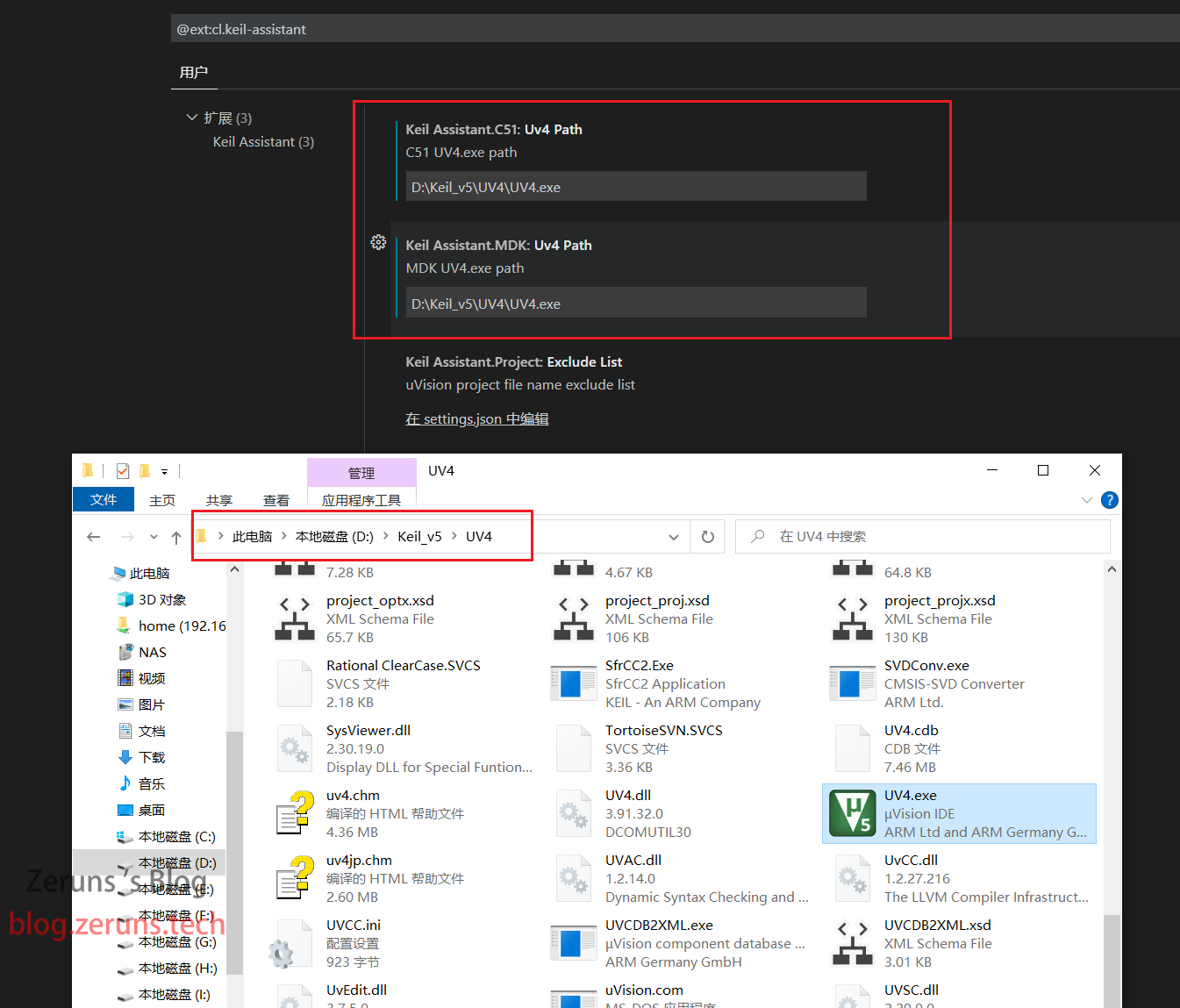
The setup is complete here. Below is a demonstration of how to use it.
Developing with VSCode
First, you need to use Keil or STM32CubeMX to create a new project and configure the compilation and debugging/download settings.
Then open the project folder with VSCode.
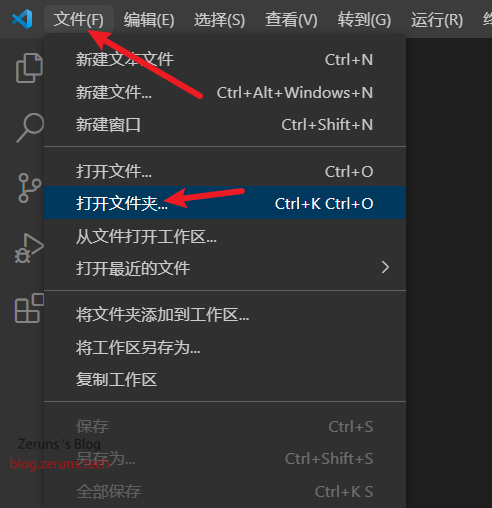
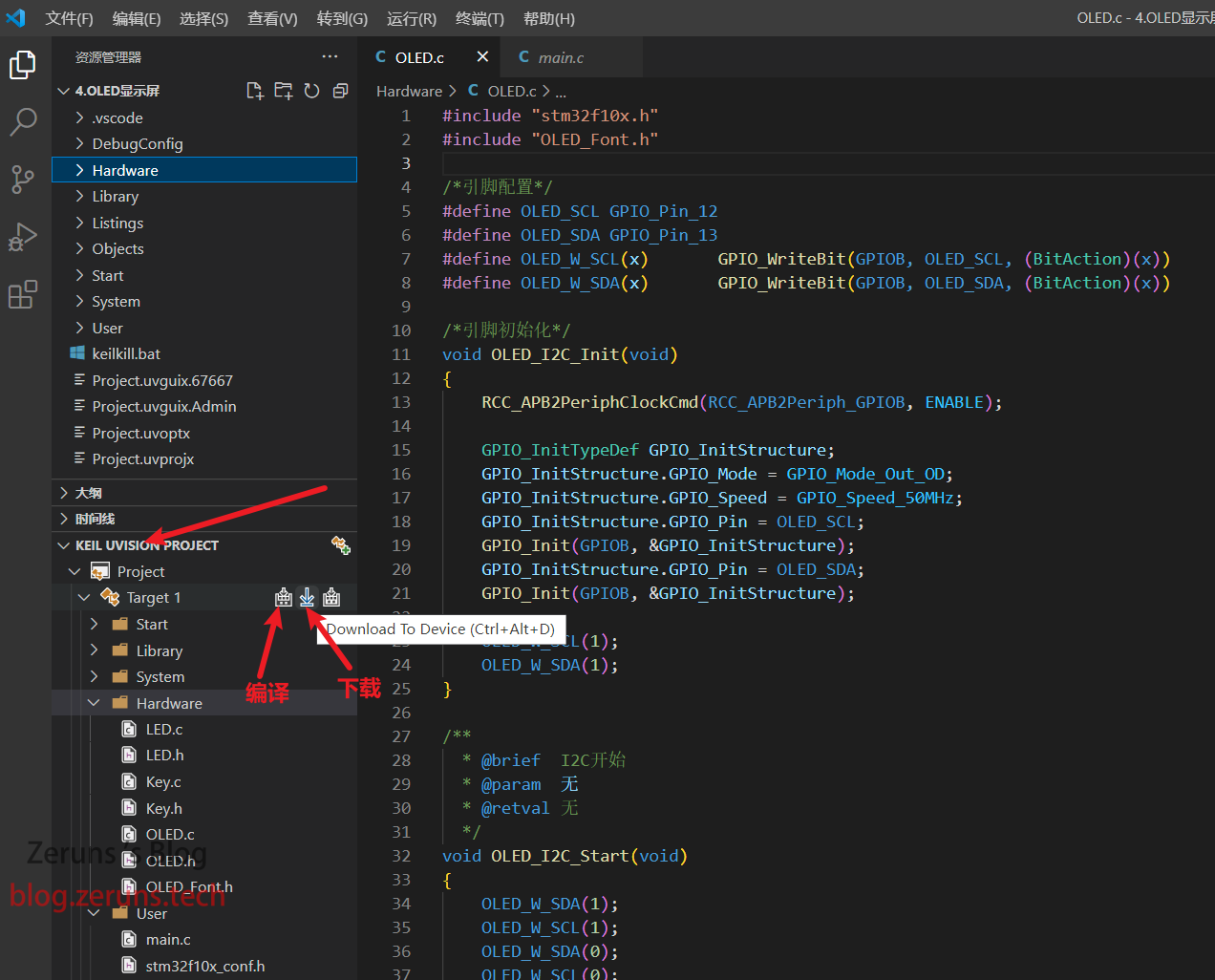
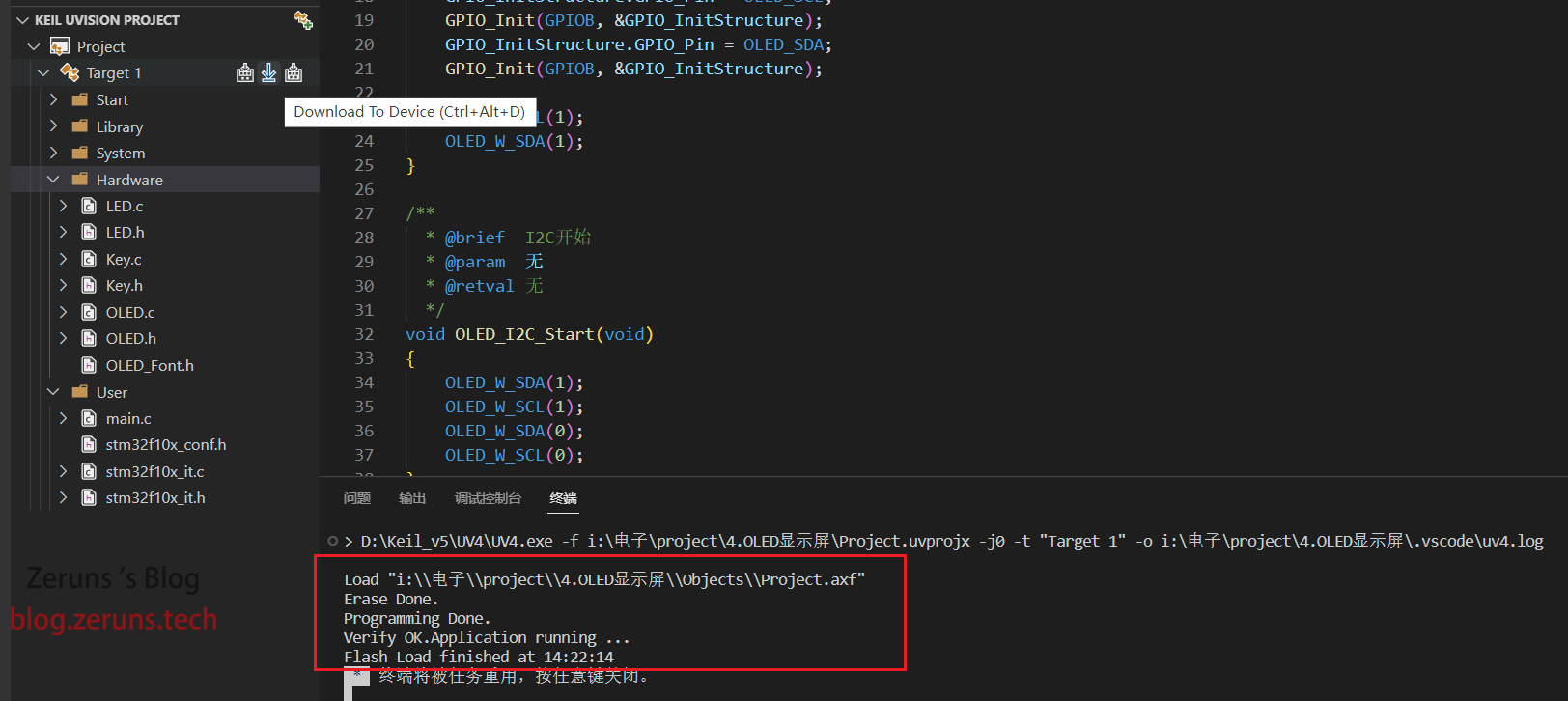
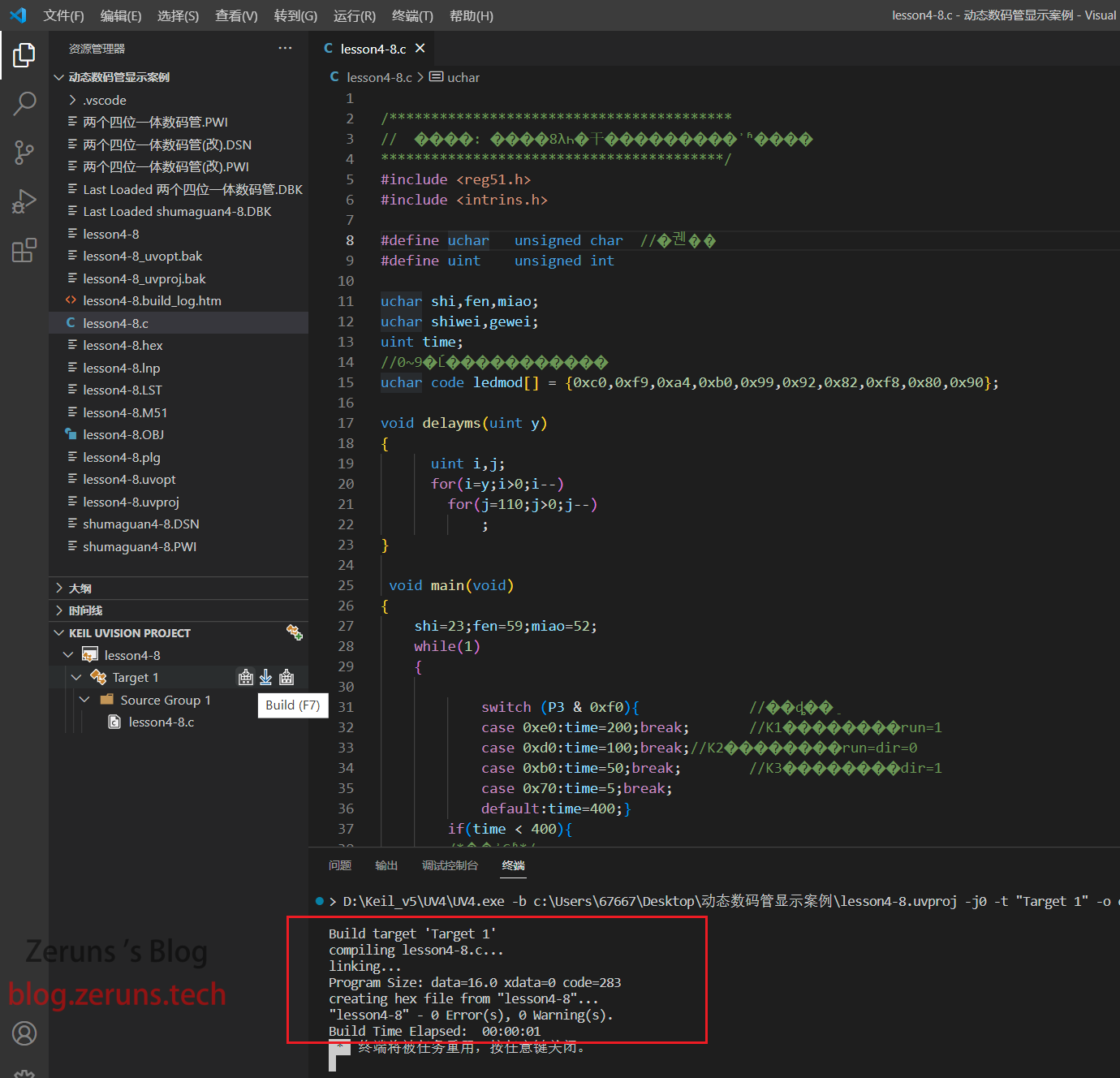
Then you can use VSCode to develop for STM32. The buttons for compilation and download are shown in the image below.
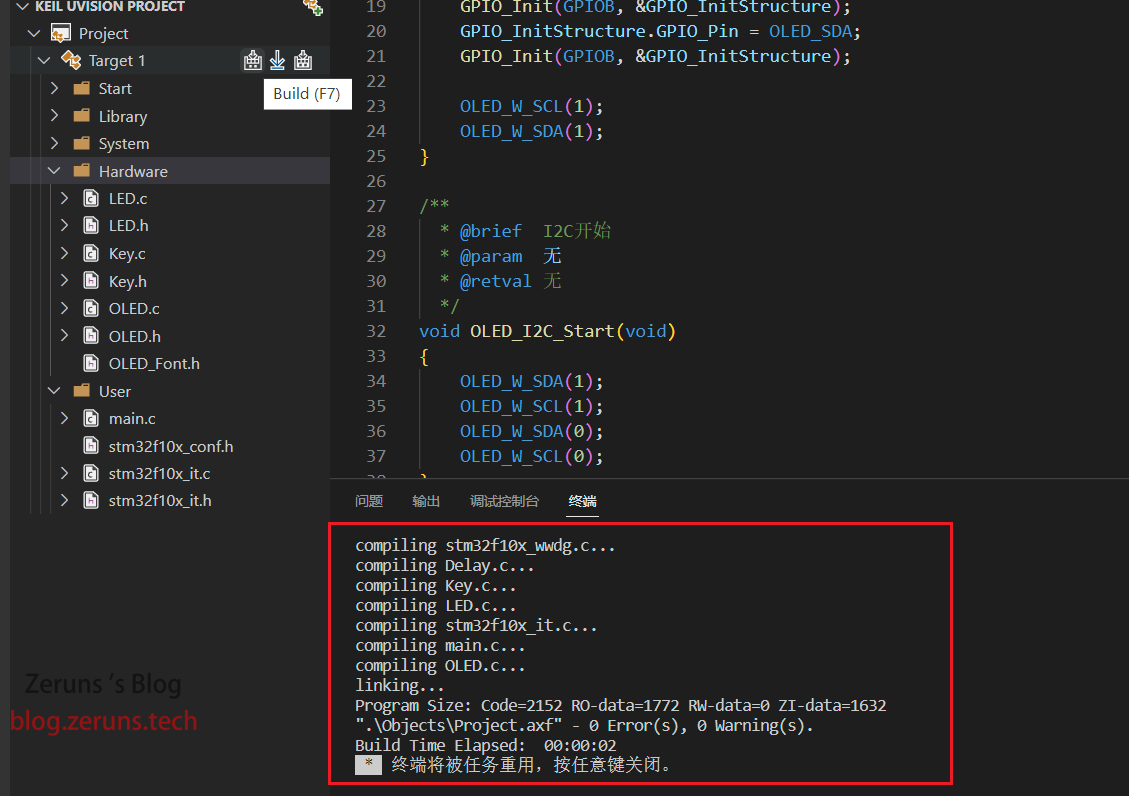
Click this compile button, and VSCode will call Keil to complete the compilation.
Click the download button, and the compiled program will be downloaded to your STM32 microcontroller.
51 microcontrollers can also be developed using this method.
Recommended Reading
- High-Cost Performance and Cheap VPS/Cloud Server Recommendations: https://blog.vpszj.cn/archives/41.html
- Using NPS to Build an Intranet Penetration Server with Web Panel: https://blog.vpszj.cn/archives/748.html
- Linux Website Setup Tutorial, Website Building Tutorial: https://blog.vpszj.cn/archives/1094.html
- Minecraft Server Setup Tutorial: https://blog.vpszj.cn/archives/tag/minecraft
- Implementing Ultrasonic Ranging Function Based on STM32 and HC-SR04 Module: https://blog.zeruns.com/archives/680.html
- ESP8266 Development Environment Setup and Project Demonstration: https://blog.zeruns.com/archives/526.html