Simple unboxing review of the AMD Ryzen 9 9950X and MSI B850M MORTAR WIFI motherboard.
Introduction
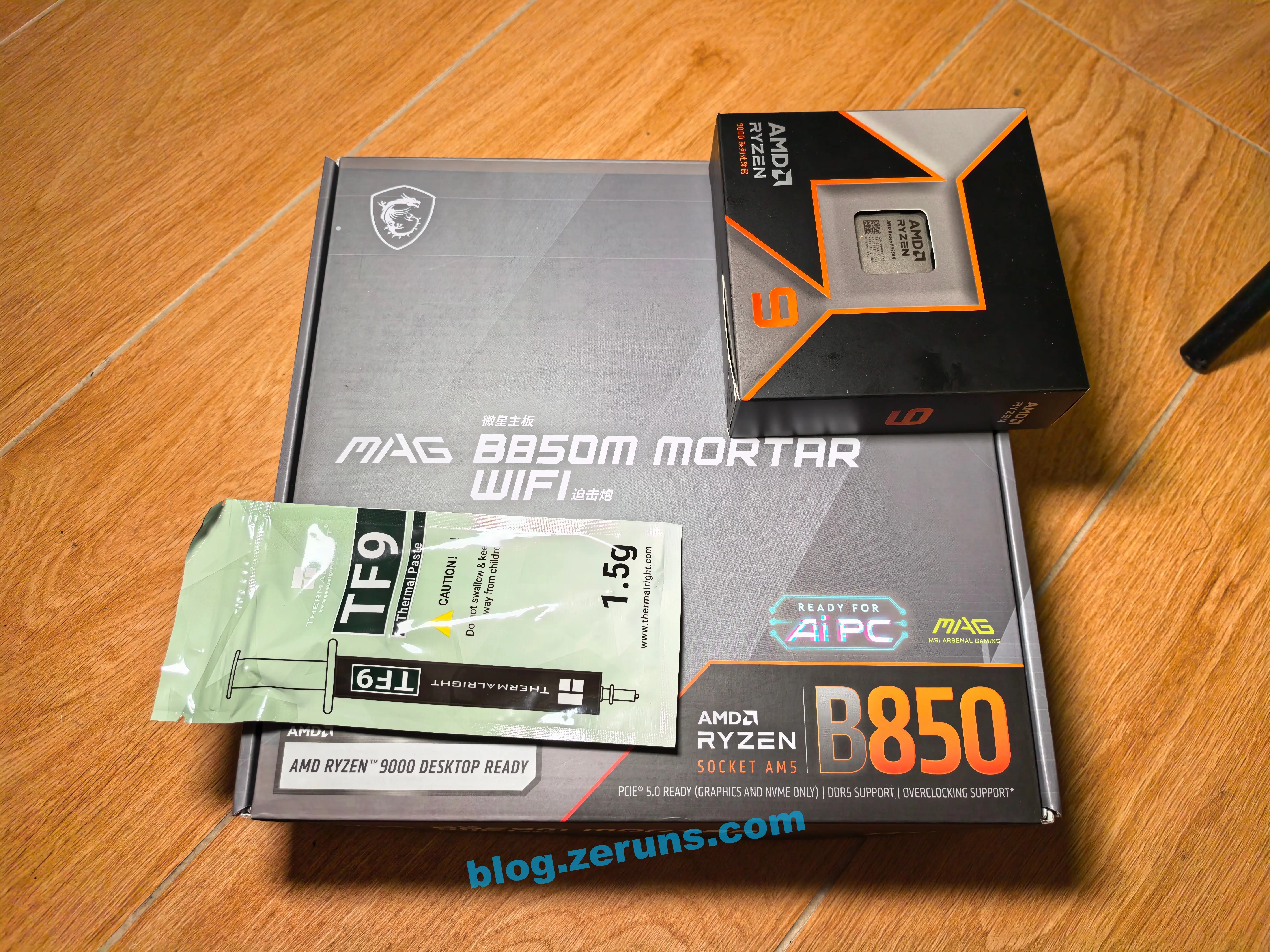
On June 24, 2025, I bought this motherboard-and-CPU bundle for 5,579 yuan and upgraded my computer.
The reason I switched to the 9950X is that my previous Ultra7-265K motherboard-and-CPU bundle, using a GIGABYTE AORUS Elite Z890 motherboard, often suddenly froze and rebooted under any circumstances, not just under heavy load. Even after resetting the BIOS to factory defaults and using stock frequencies, the issue remained. My friend also bought a 5700X motherboard-and-CPU bundle with a GIGABYTE motherboard, and it had the same problem. His GIGABYTE motherboard also had an issue where the second M.2 drive slot could not read or write drives properly. The second slot is connected to the southbridge, while the first slot connected directly to the CPU worked fine. I suspect GIGABYTE motherboards have very poor quality control, and I did not want to be without a computer while waiting for after-sales service to replace it, so I simply upgraded both the motherboard and CPU.
After applying for a JD.com after-sales replacement for the old motherboard, I sold the motherboard and CPU second-hand on Xianyu for about 3,000 yuan in total, which was only about 500 yuan less than the new price.
Simple unboxing review of the Ultra7-265K and GIGABYTE Z890M-AORUS-ELITE-WIFI7 motherboard: https://blog.zeruns.com/archives/863.html
The 9950X costs more than 2,000 yuan more than the 265K, but in actual testing the performance improvement was only around 20% or so, though gaming performance may improve more. If you need it for productivity, I feel the 265K offers better value for money. Also, the 9950X is hard to keep cool, and its energy efficiency is slightly lower, since the 265K uses a 3nm process while the 9950X uses a 4nm process. A 240mm liquid cooler cannot handle the 9950X.
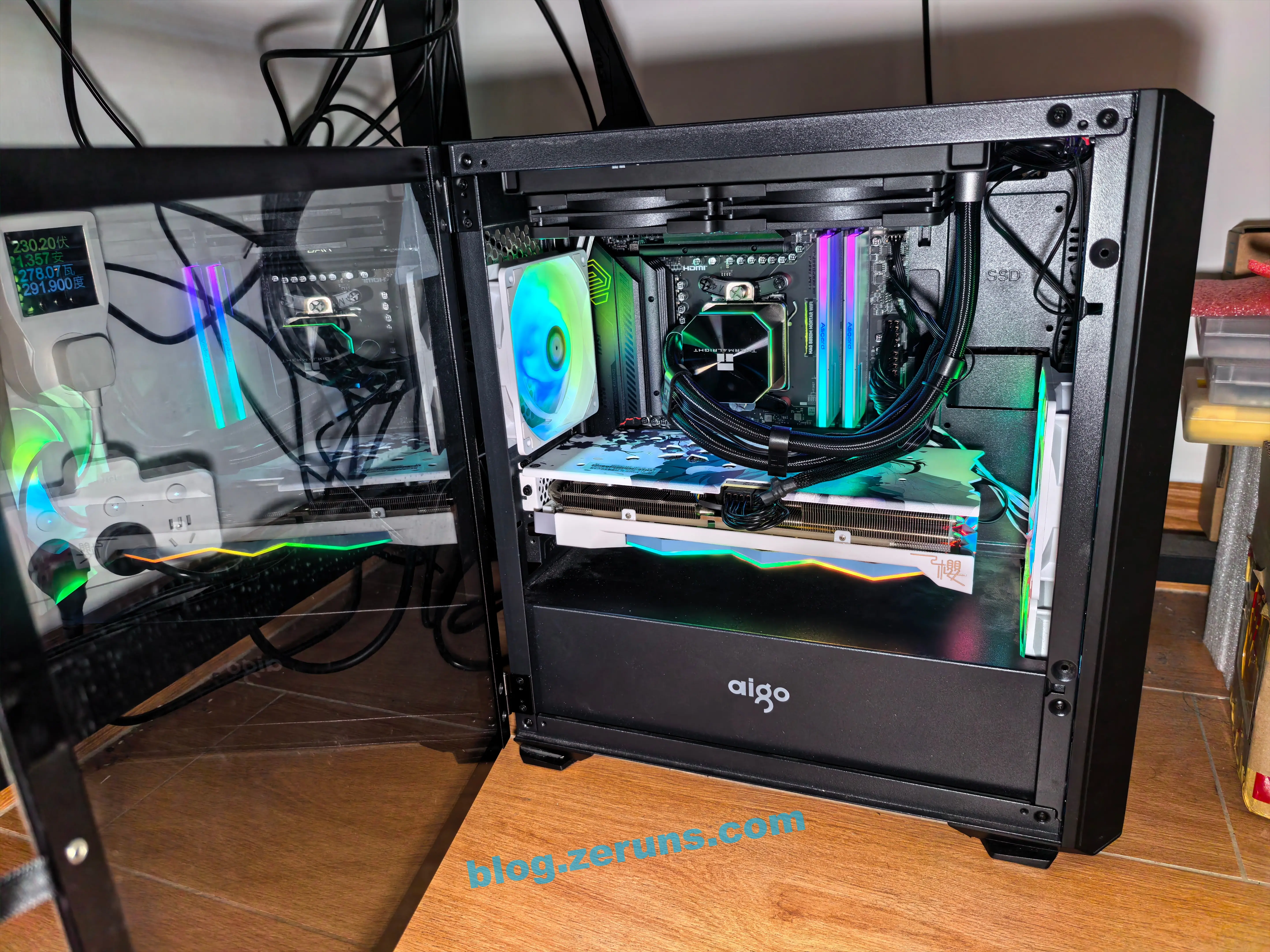
Photo after installation:

The two products reviewed in this article are shown below:

- Simple review and teardown of the Apple Mac Mini M4 mini PC, the small PC with the strongest single-core performance: https://blog.zeruns.com/archives/851.html
- Upgrading the computer, replacing the CPU with an I5-14600K and the motherboard with an ASUS B760M: https://blog.zeruns.com/archives/779.html
- Review and teardown of the Machenike imini Pro820 mini PC: https://blog.zeruns.com/archives/813.html
9950X motherboard-and-CPU bundle purchase links:
- JD.com: https://u.jd.com/21TQrfK
- Taobao: https://s.click.taobao.com/YopfsAr
265K motherboard-and-CPU bundle purchase links:
- JD.com: https://u.jd.com/2rTbEde
- Taobao: https://s.click.taobao.com/05e1XMr
Configuration Information

Motherboard
The motherboard is the MSI B850M MORTAR WIFI.
Motherboard official page: https://url.zeruns.com/MAG-B850M
Front of the motherboard retail box

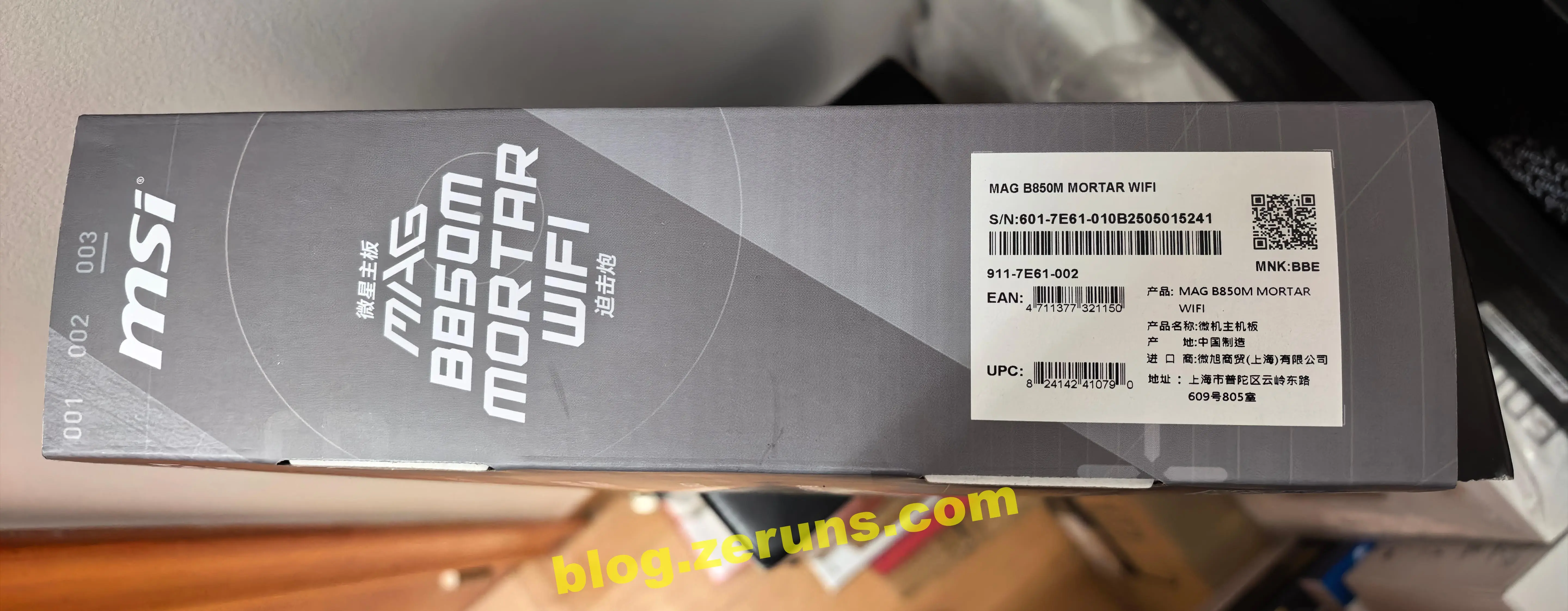
Side of the retail box

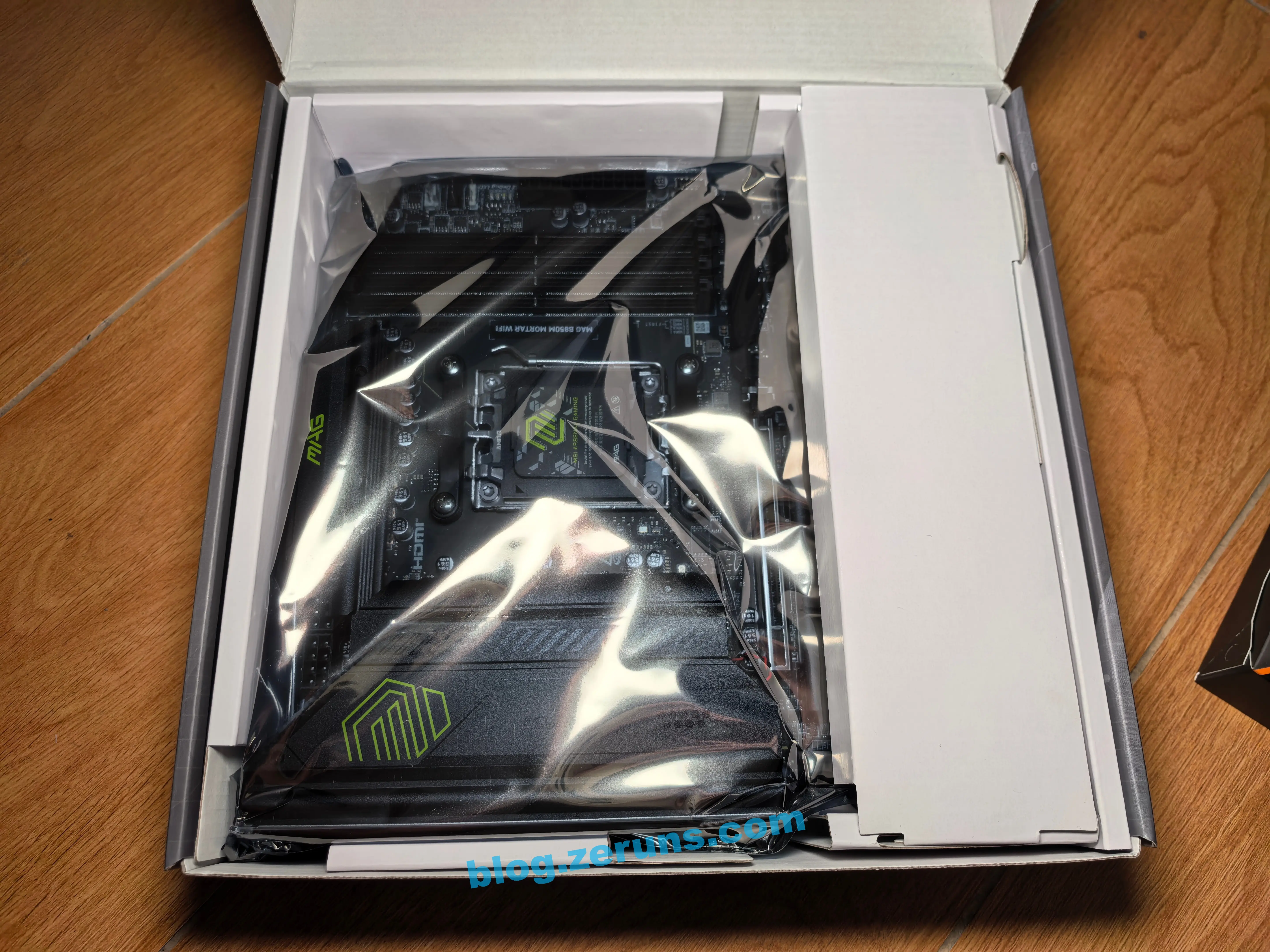
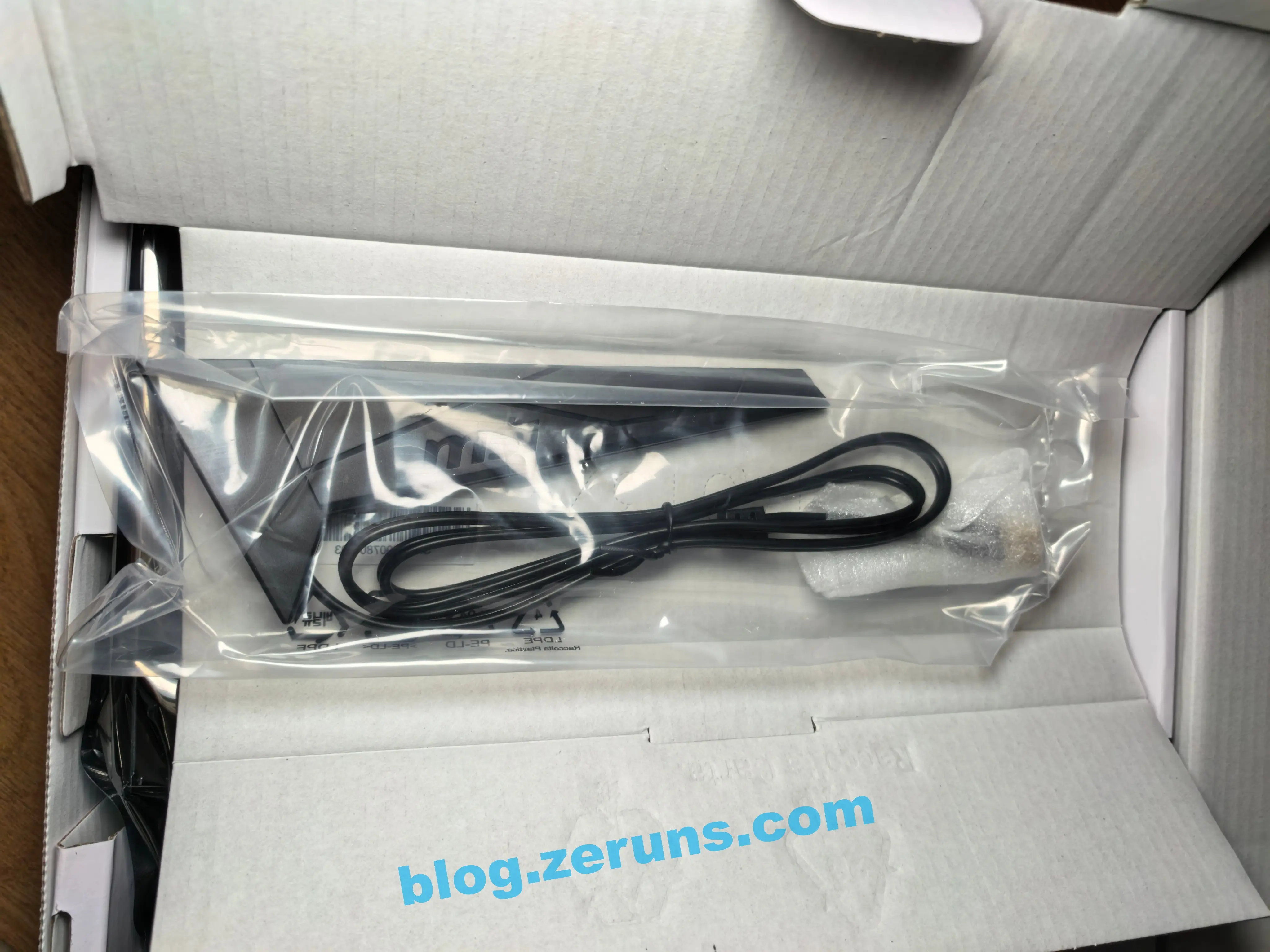
Unboxing. The motherboard is shown, and the small box next to it contains the WiFi antenna.

WiFi antenna

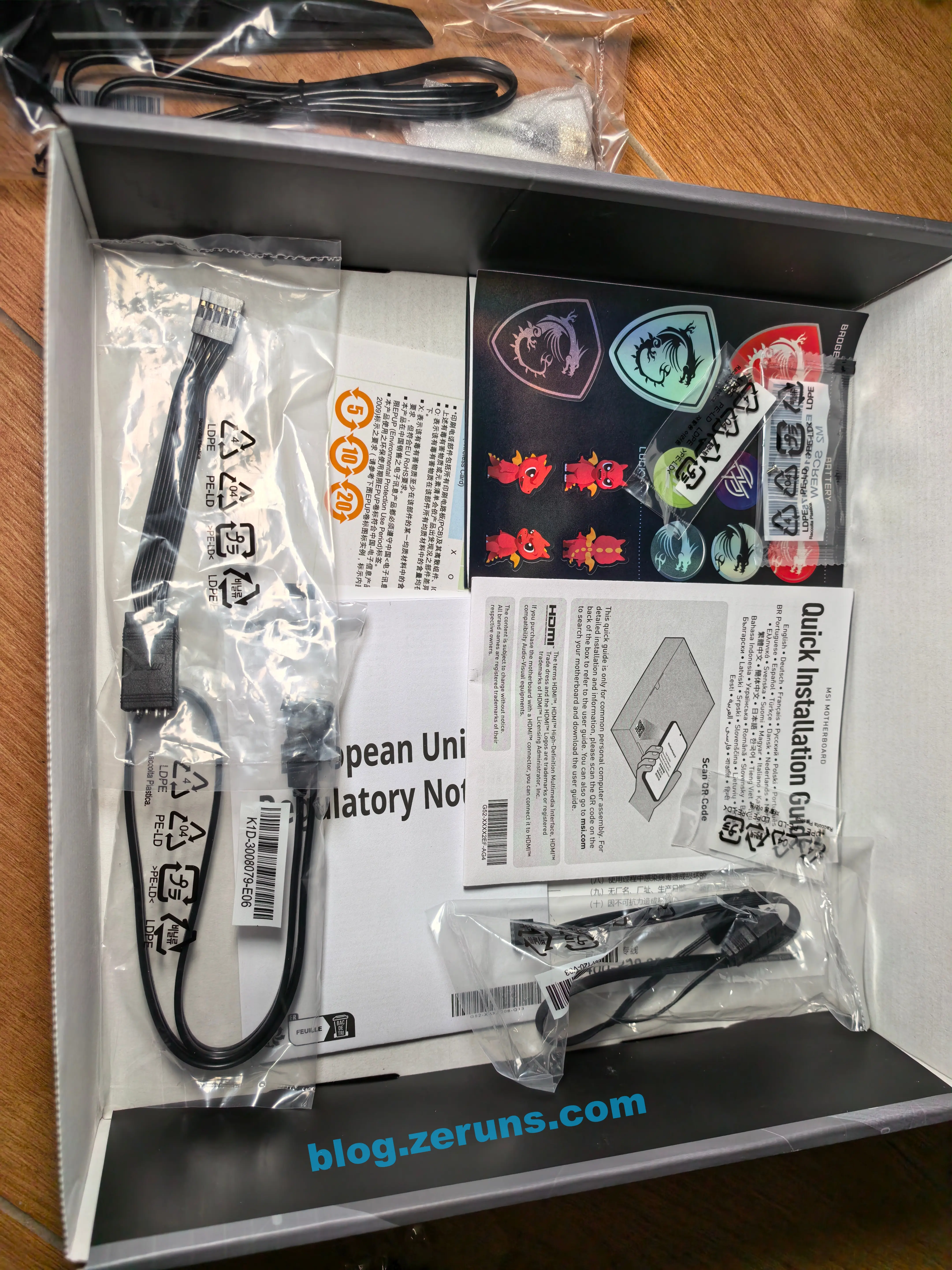
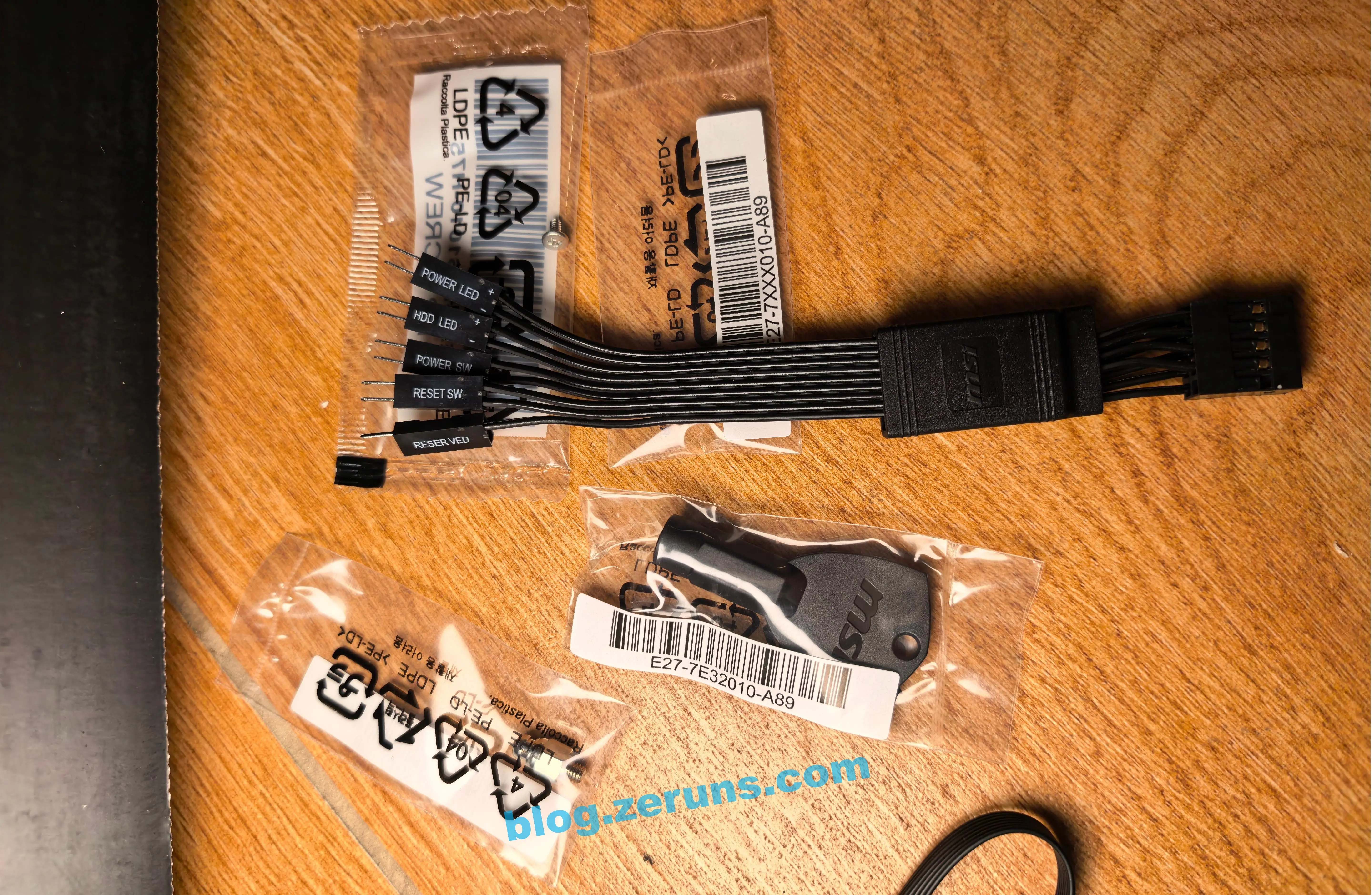
Underneath are SATA data cables, stickers, the manual, and other accessories.


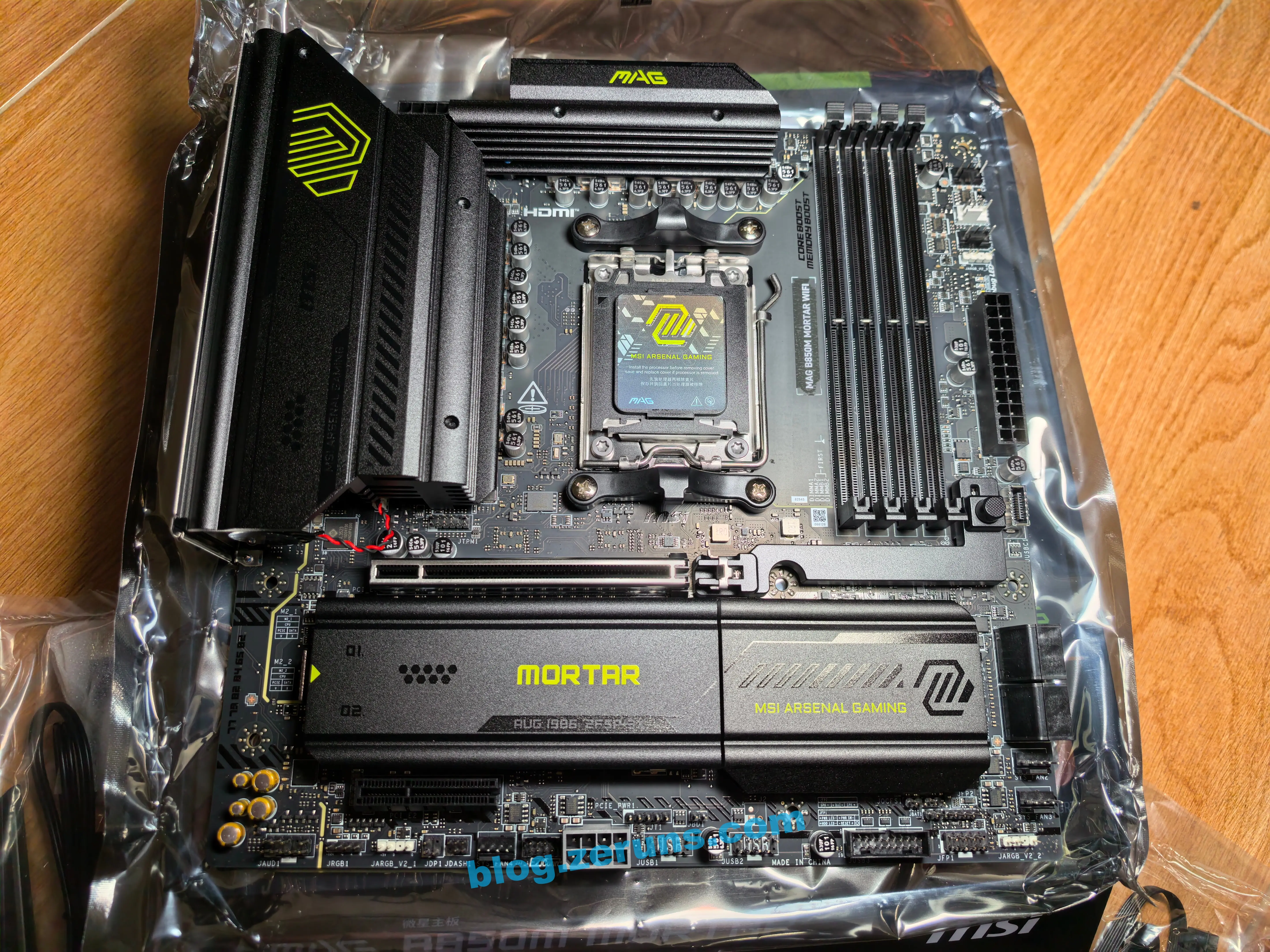
Front of the motherboard

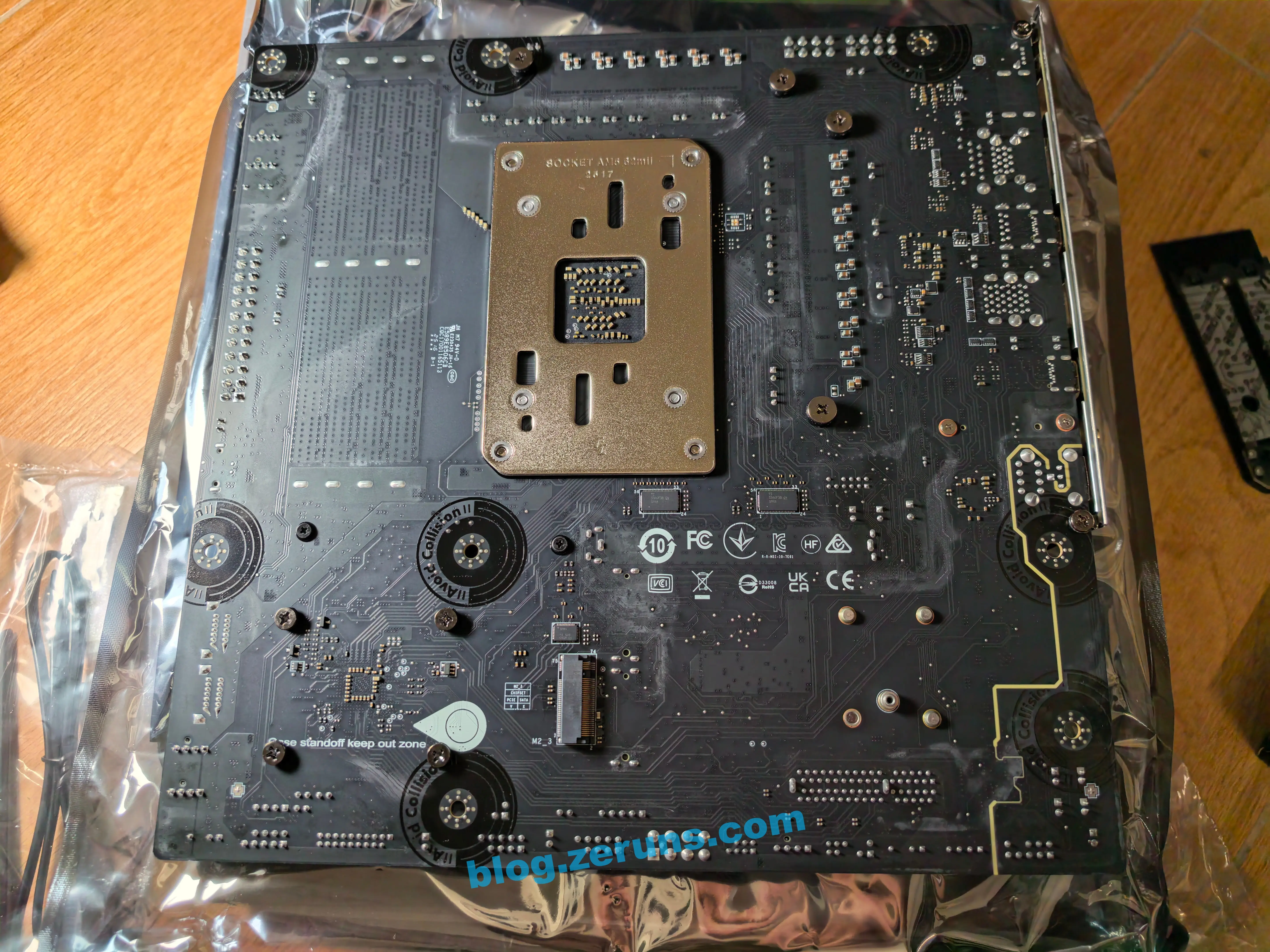
Back of the motherboard, with a PCIe 4.0 x2 M.2 drive slot

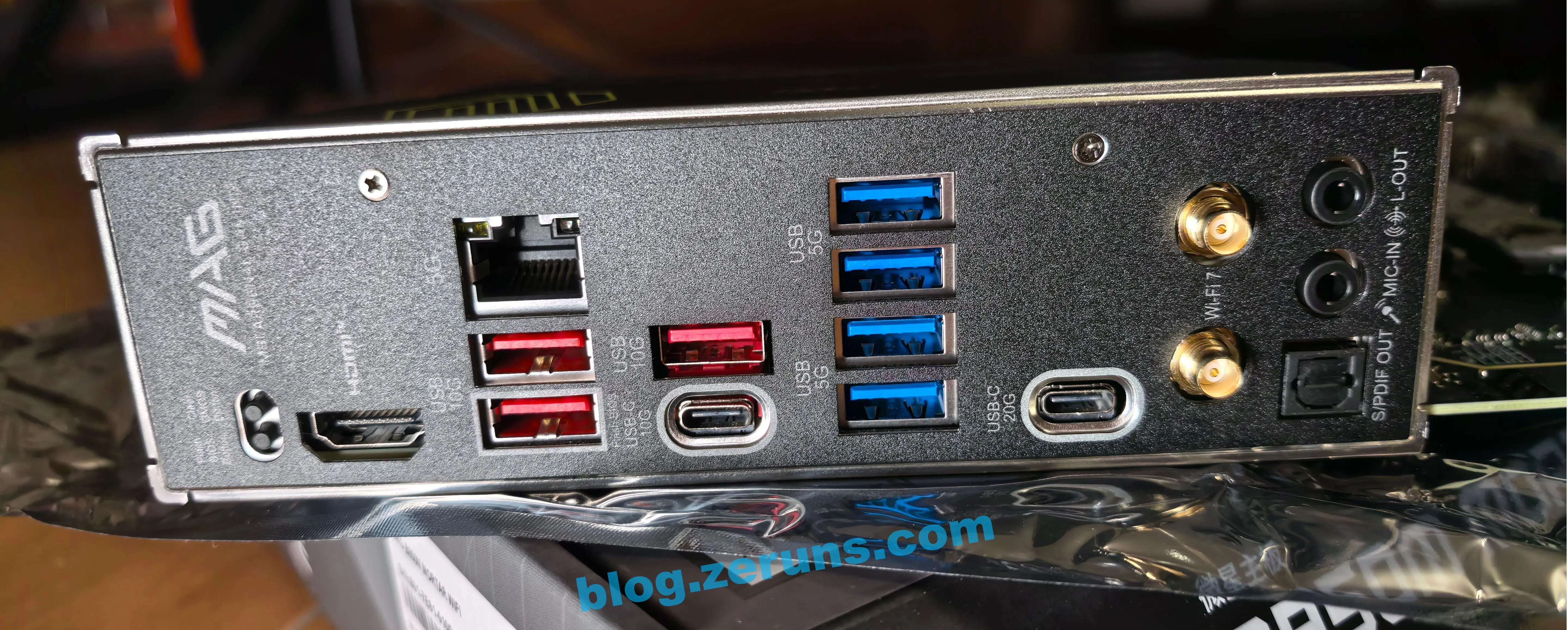
Side of the motherboard. From left to right, the ports are:
- Flash BIOS button, used to update BIOS firmware via USB without a CPU or memory installed, and Clear CMOS button, used to restore BIOS default settings
- HDMI
- 5Gbps Ethernet port, Realtek® 8126-VB
- 3x USB 10Gbps Type-A
- 1x USB 10Gbps Type-C
- 4x USB 5Gbps Type-A
- 1x USB 20Gbps Type-C
- WiFi/Bluetooth antenna connectors
- Audio output and input ports, SPDIF_OUT, MIC, LINE_OUT

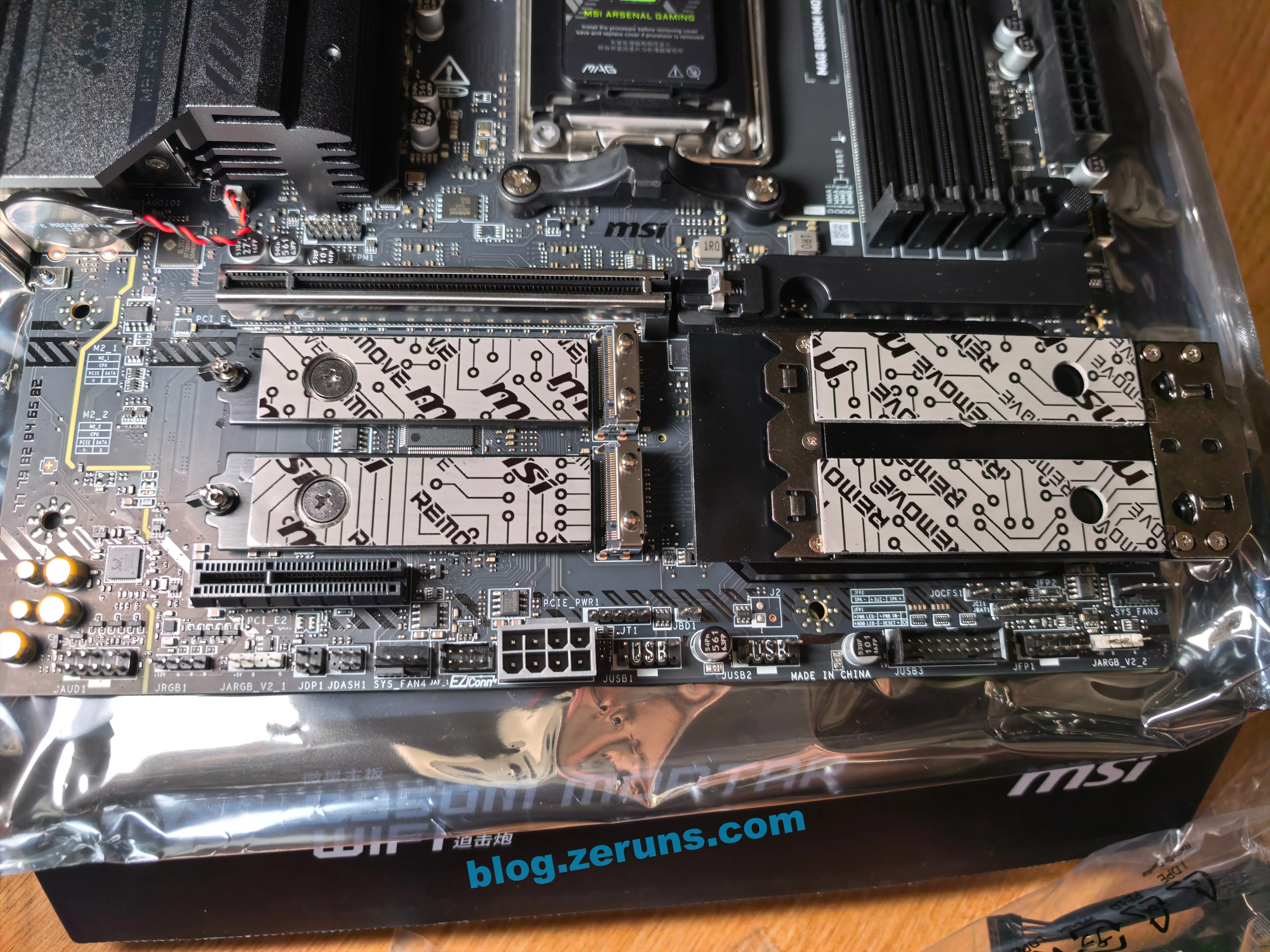
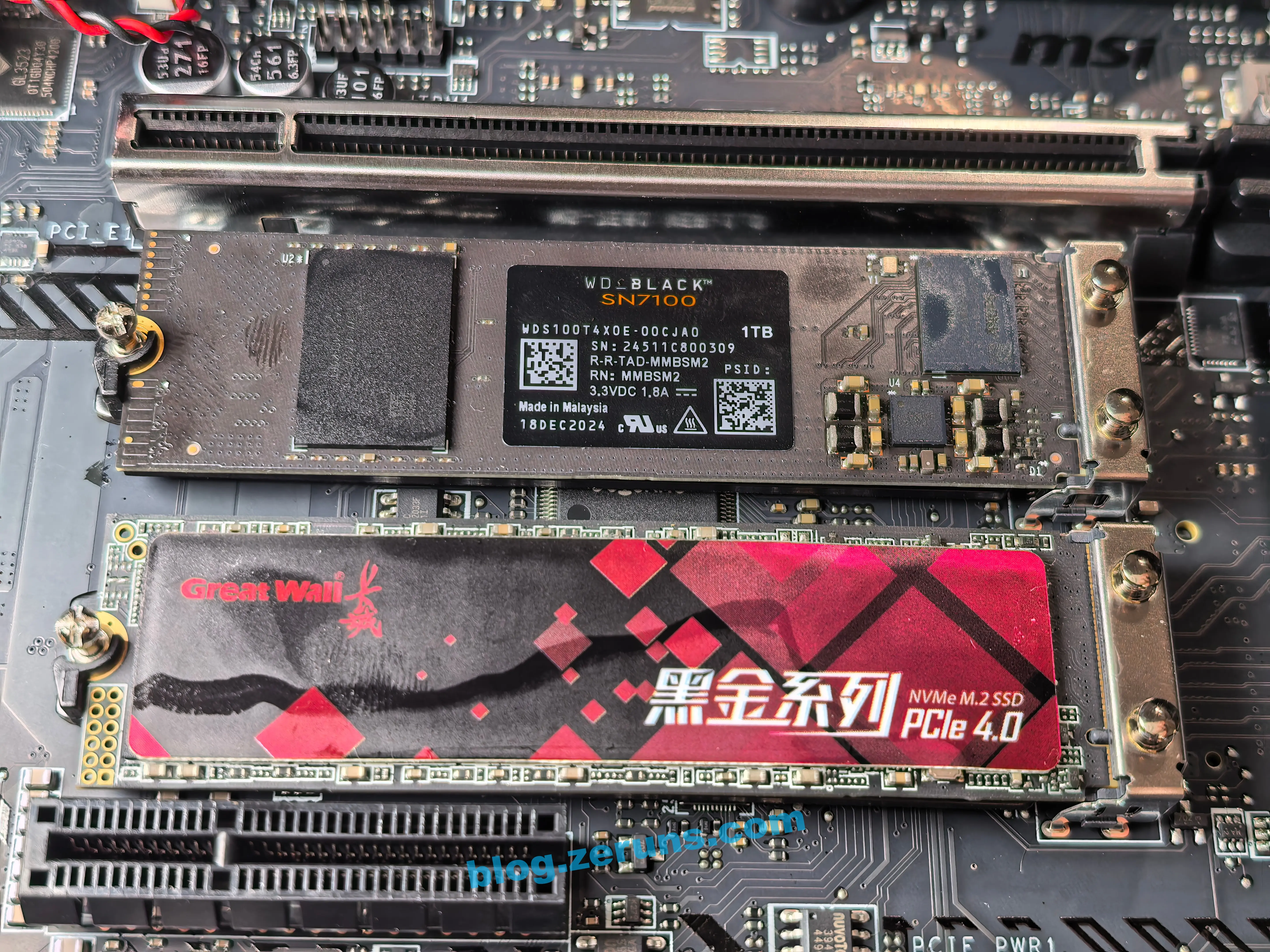
The front of the motherboard has two M.2 SSD slots, PCIe 5.0 x4, both covered by heatsinks. The heatsinks have thermal pads, so be sure to peel off the plastic film on the surface of the thermal pads before installation.
Below that is MSI’s proprietary EZ Conn interface. Using the EZ Conn extension cable included in the accessories, the EZ Conn interface can be expanded into one PWM fan interface and one 5V 3-pin ARGB lighting interface.

After installing the SSD

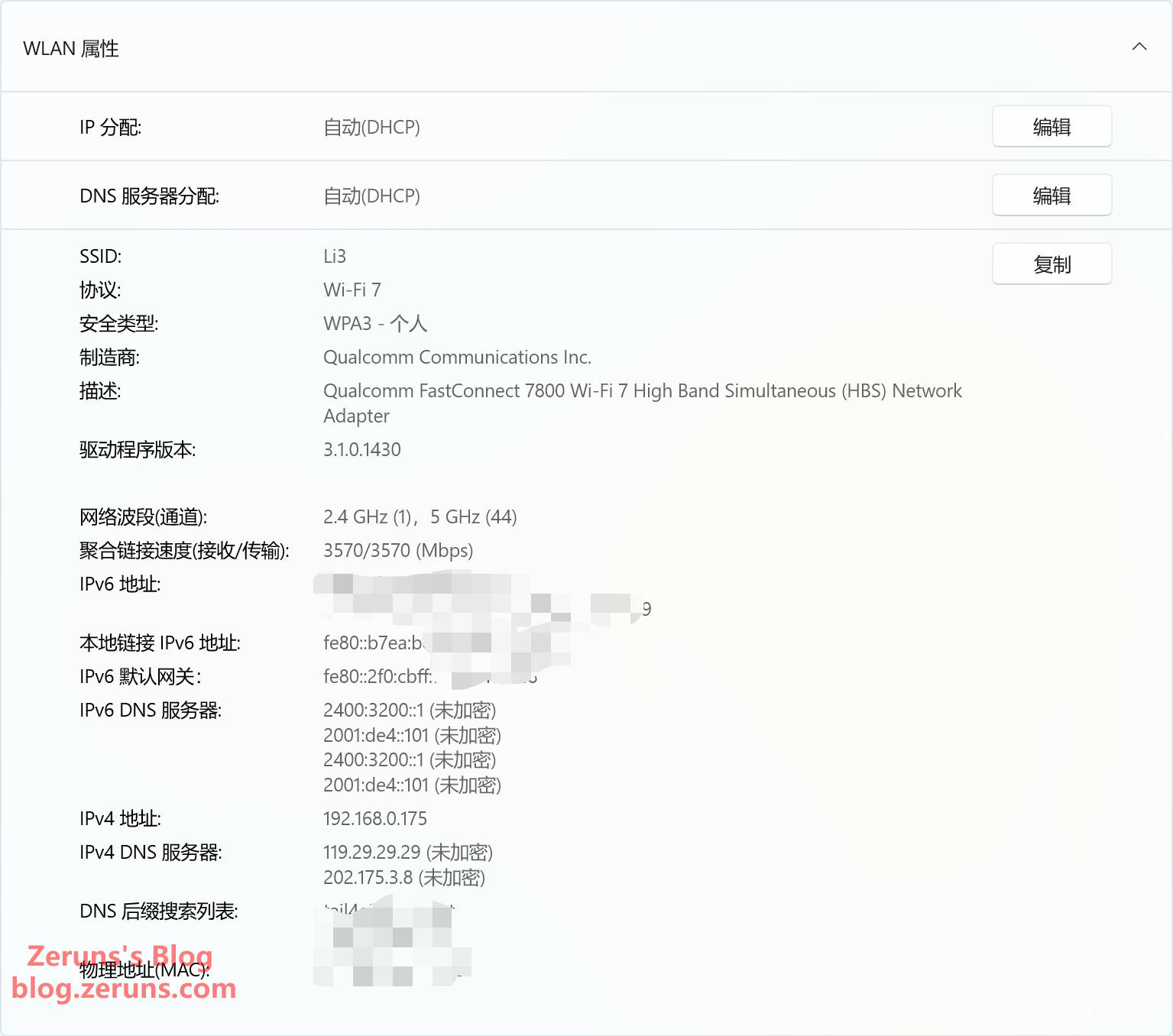
The onboard WiFi 7 wireless card on the motherboard is Qualcomm’s FastConnect 7800. This WiFi 7 card is very good. It supports 2.4GHz, 5GHz, and 6GHz, 320MHz, and supports MLO. When connected to a WiFi 7 AP, the negotiated speed shows 3570Mbps, so it is probably using MLO.

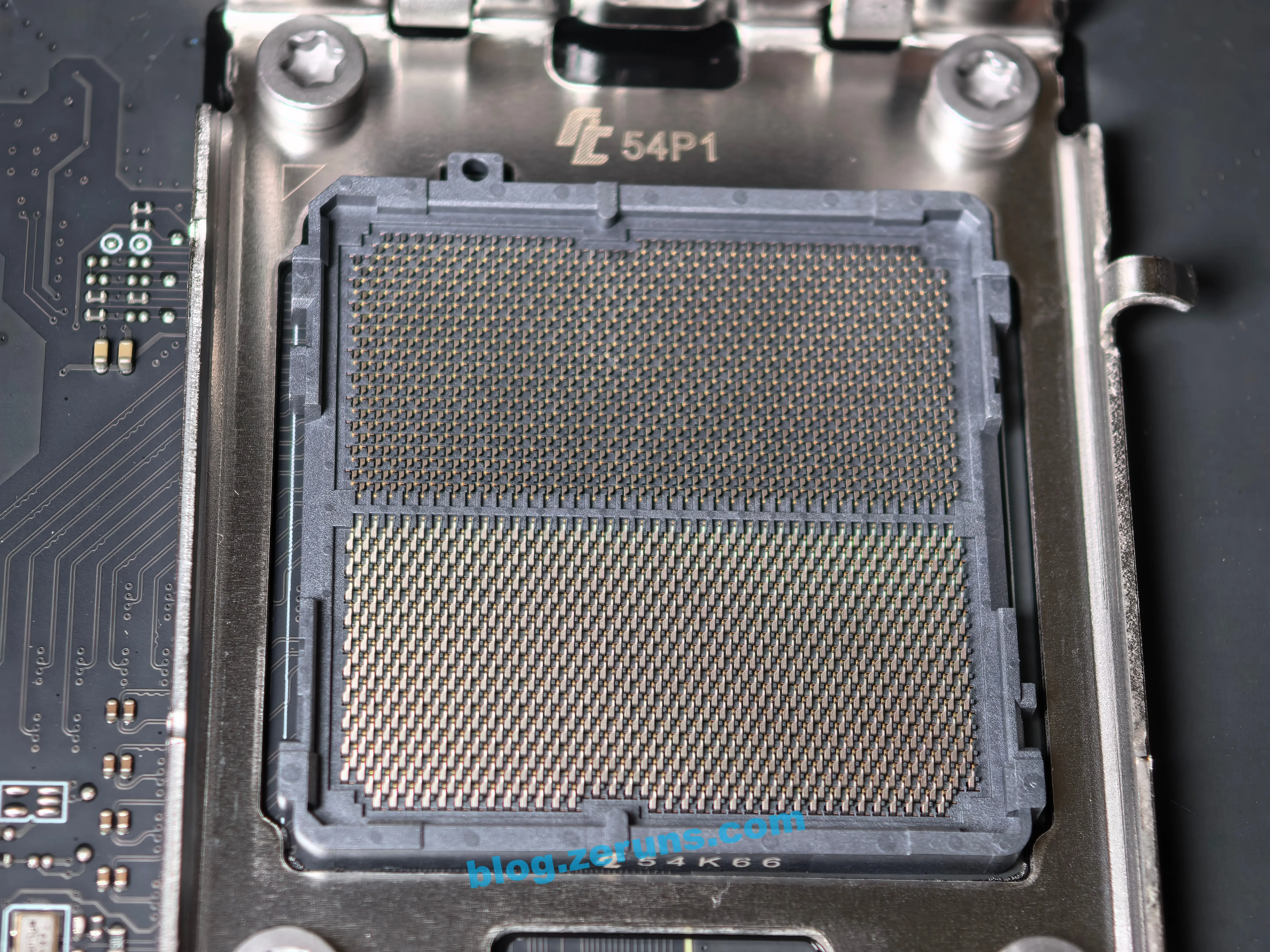
AM5 socket

CPU
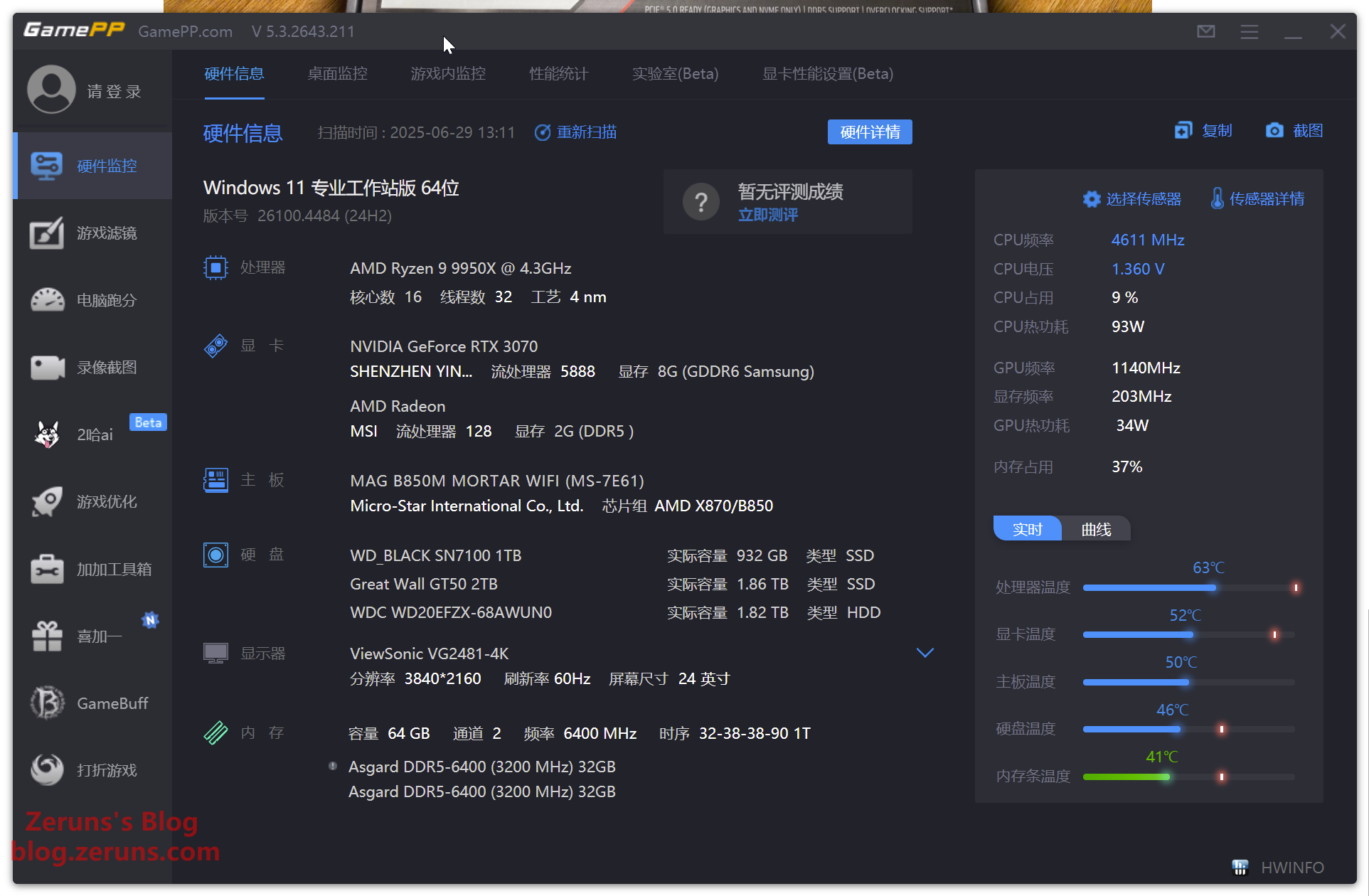
The CPU is AMD’s Ryzen 9 9950X. The specifications are as follows:
- Cores: 16 cores, 32 threads
- Clock speed: 4.3GHz base frequency, up to 5.7GHz boost frequency
- CPU core process: TSMC 4nm FinFET
- I/O die process: TSMC 6nm FinFET
- TDP: 170W
- L1/L2/L3 cache: 1280KB / 16MB / 64MB
- Socket: AM5
- Supported instruction sets: AES, AMD-V, AVX, AVX2, AVX512, FMA3, MMX-plus, SHA, SSE, SSE2, SSE3, SSE4.1, SSE4.2, SSE4A, SSSE3, x86-64
- Release date: August 15, 2024
Official page: https://url.zeruns.com/9950X
Unboxing
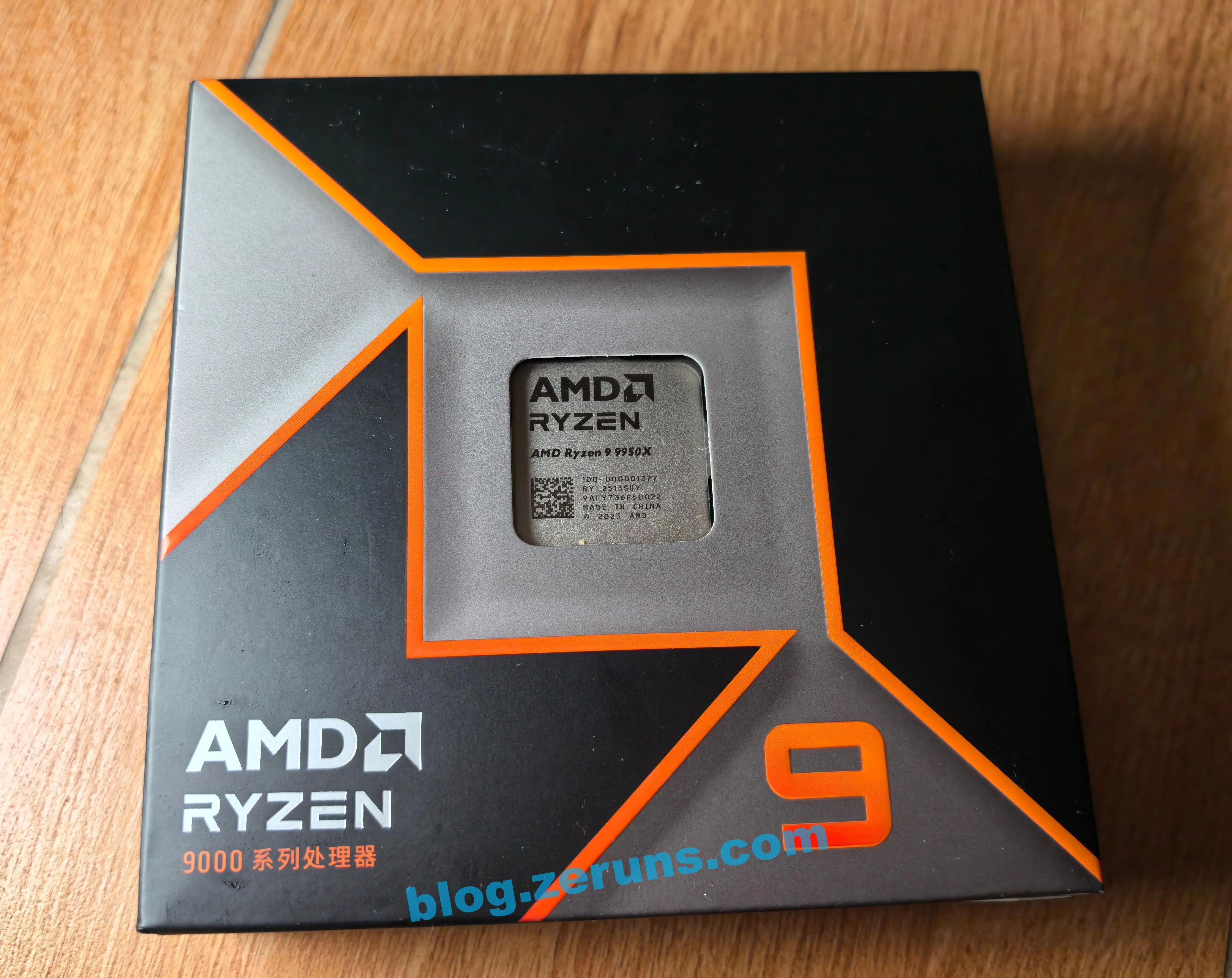
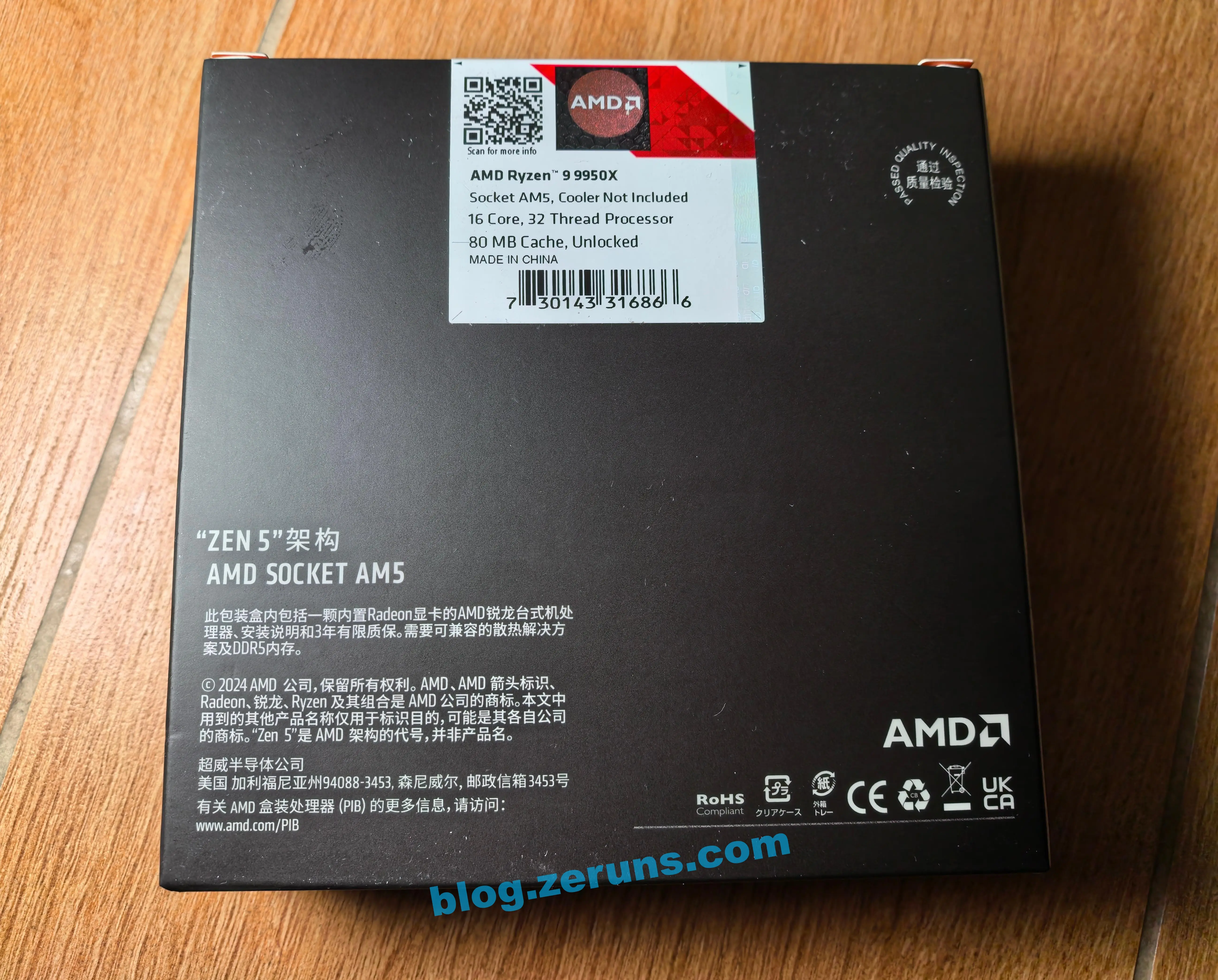
Front of the CPU retail box

Back of the retail box

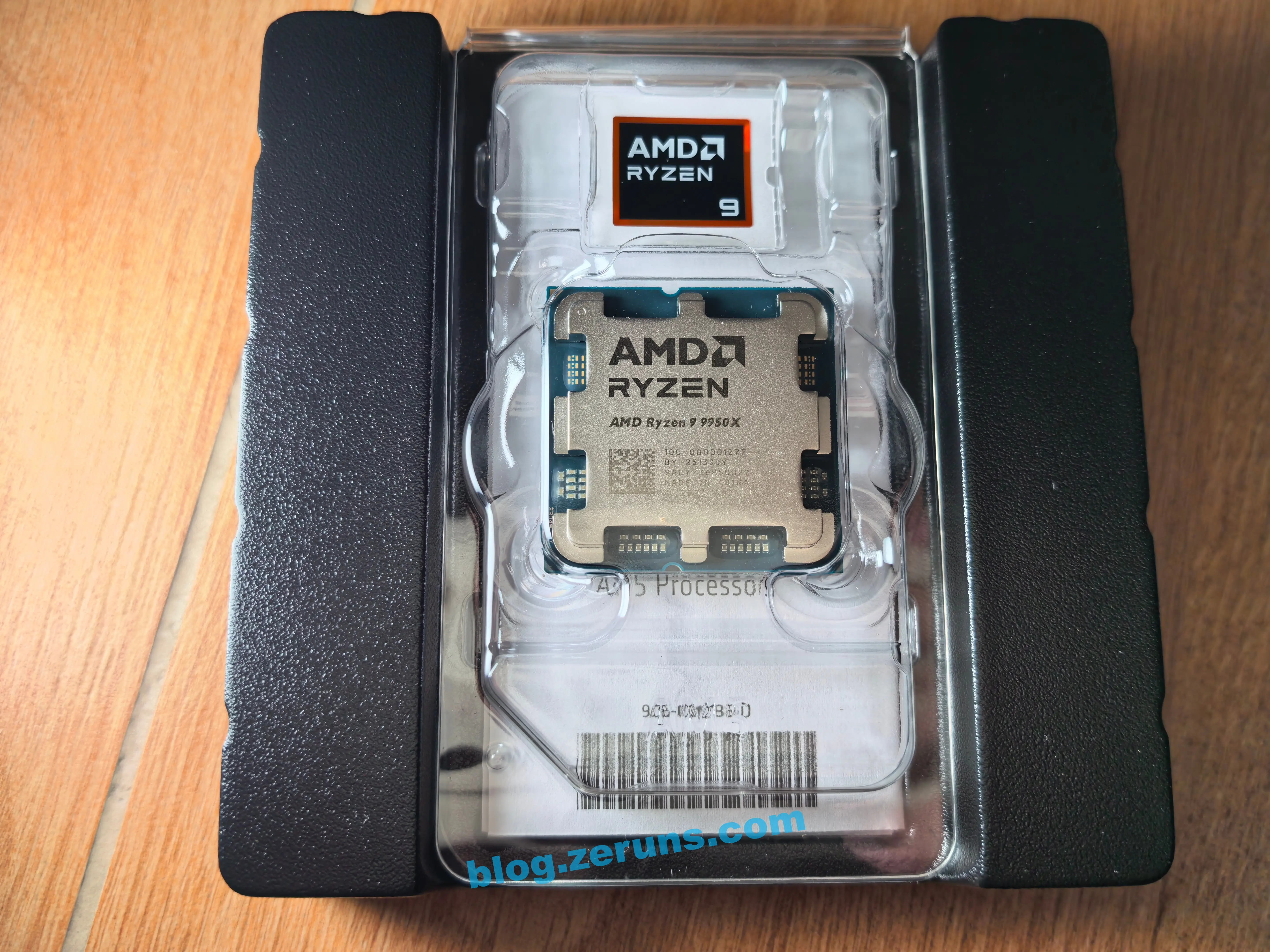
Open the box and take out the processor. It comes with an AMD RYZEN 9 sticker.

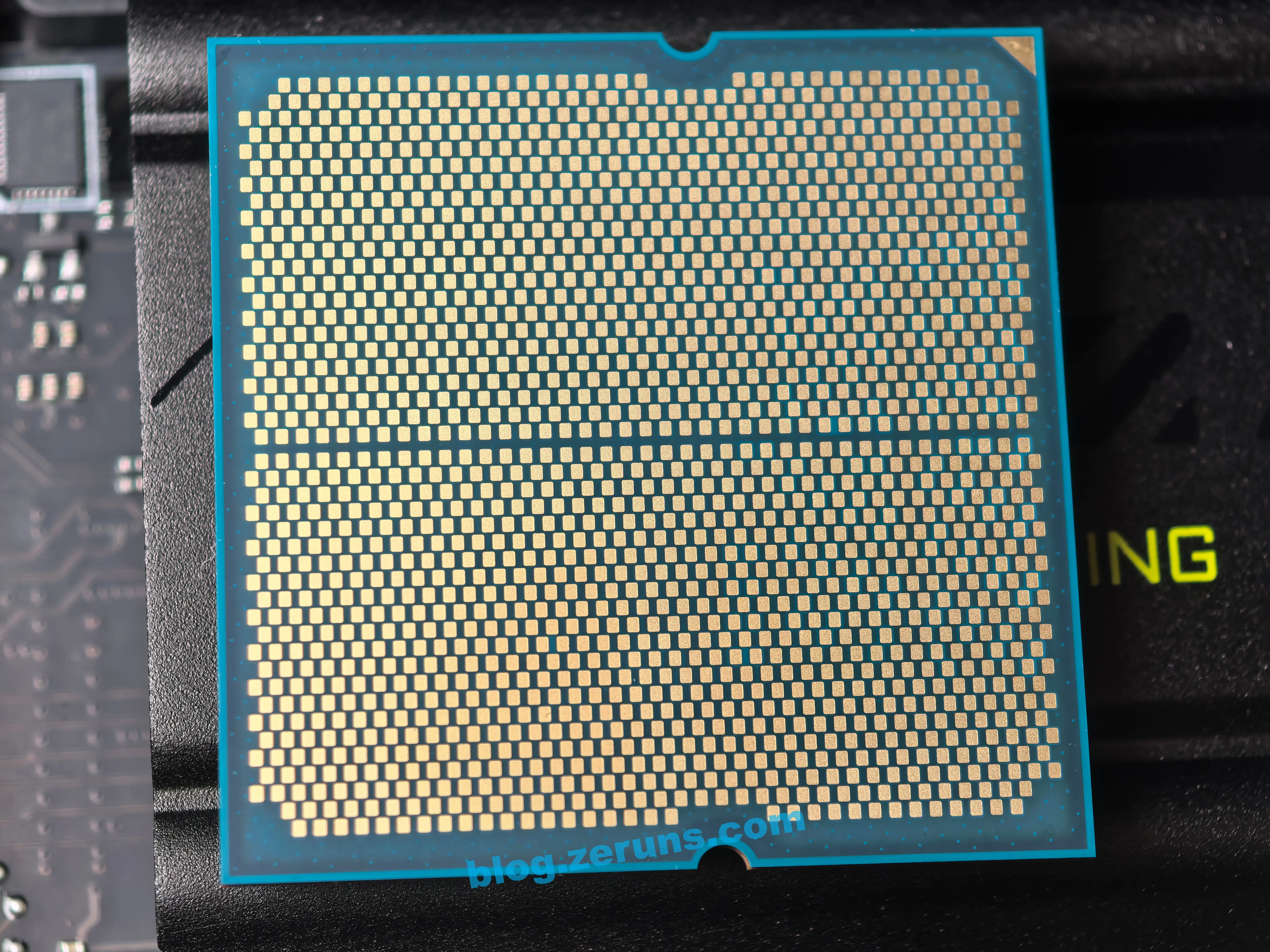
CPU bottom contacts

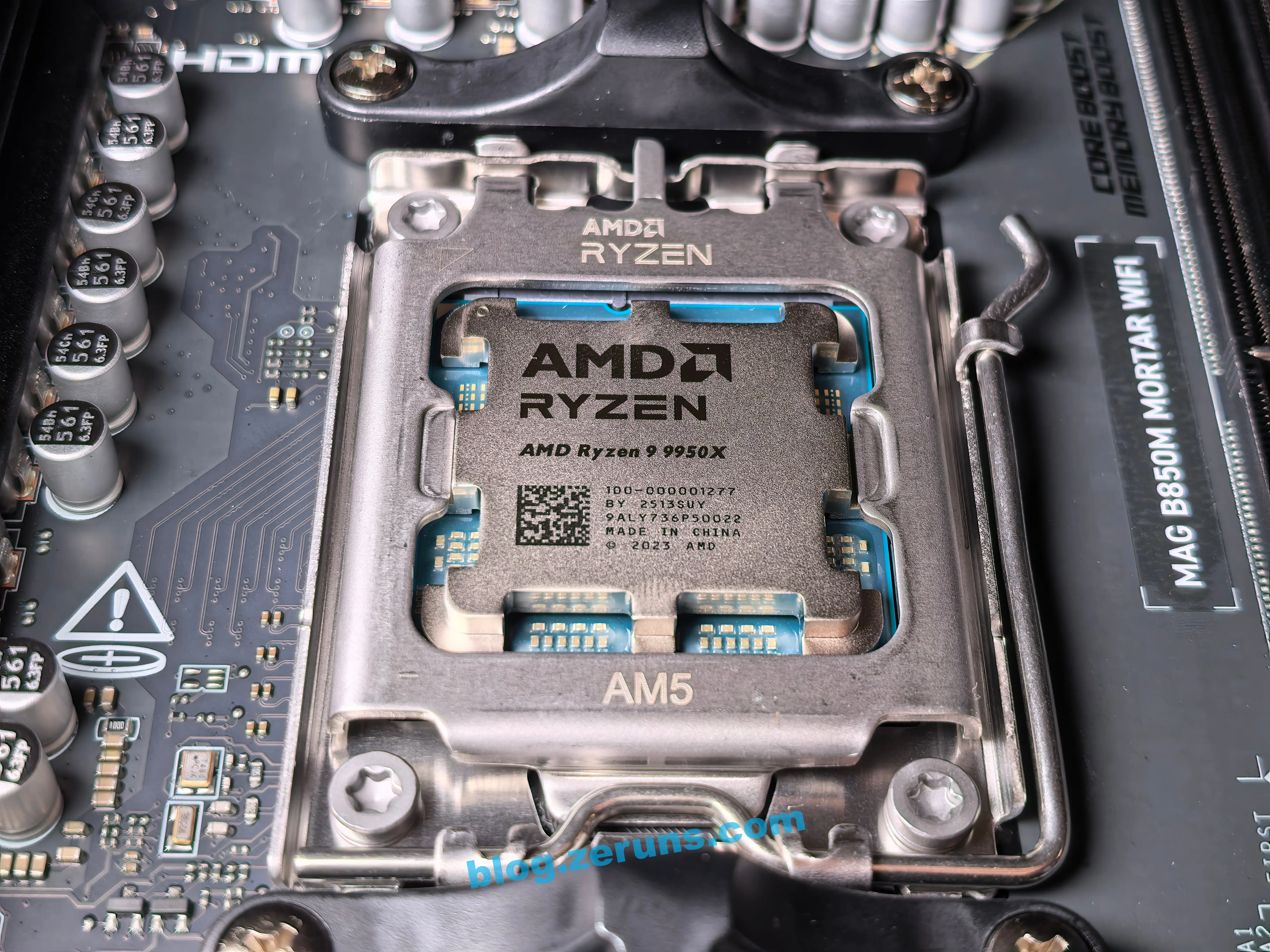
After the CPU is installed

Benchmarking
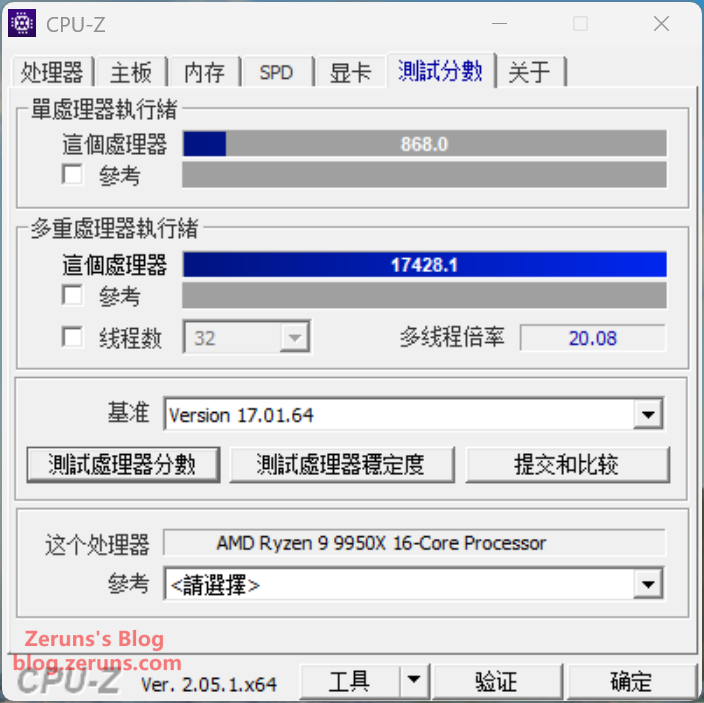
CPU-Z benchmark: 868 points single-core and 17,428.1 points multi-core. The multi-thread multiplier is 20.08, so the performance is pretty good.
However, my previous CPU was the 265K, which only cost about 2,000 yuan. It scored 907 points single-core and 16,680 points multi-core.
The 9950X is 4.4% higher than the 265K.

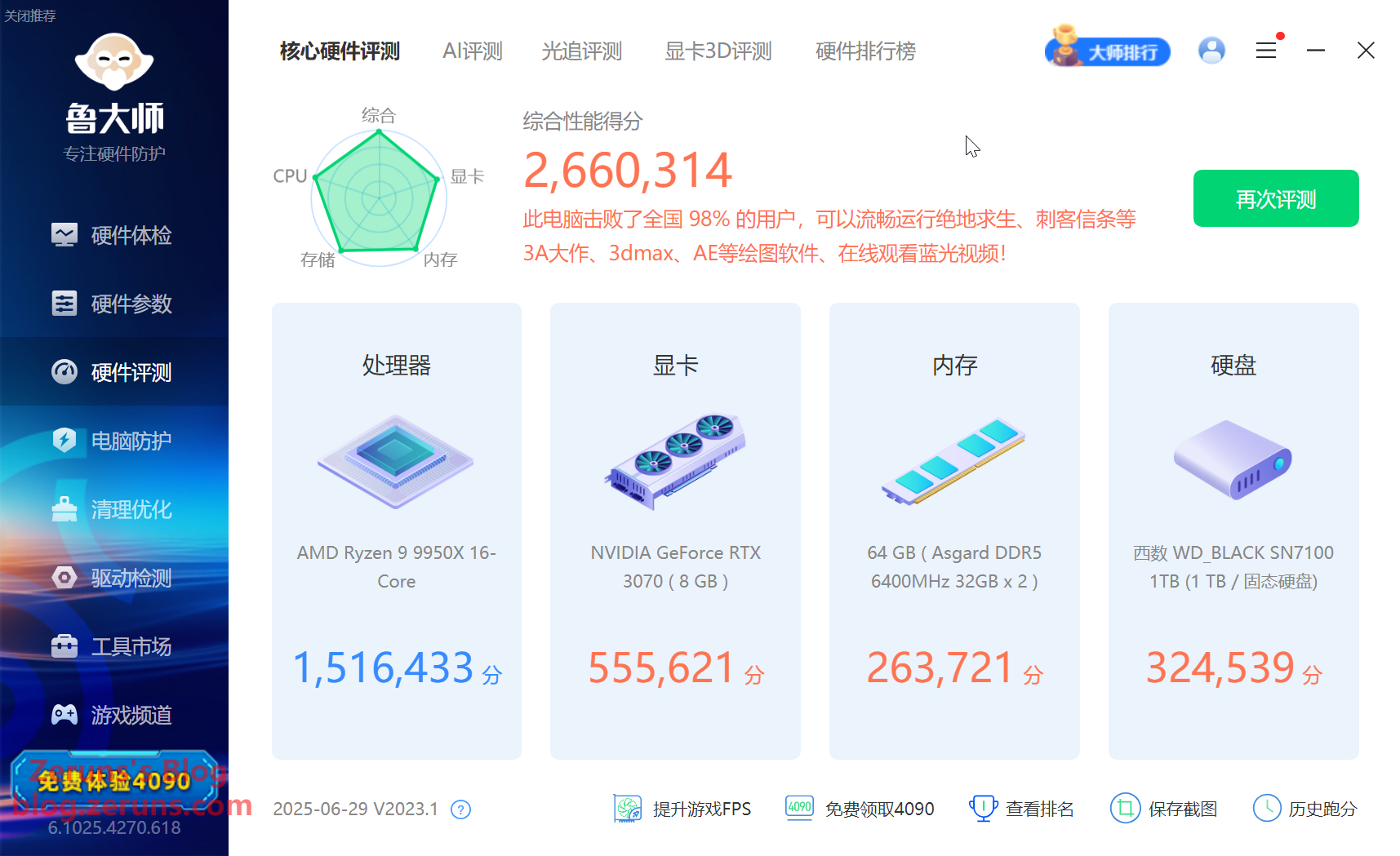
LuDaShi benchmark: CPU score of 1.51 million points, while my old 265K processor scored 1.29 million. The 9950X is 17% higher than the 265K.

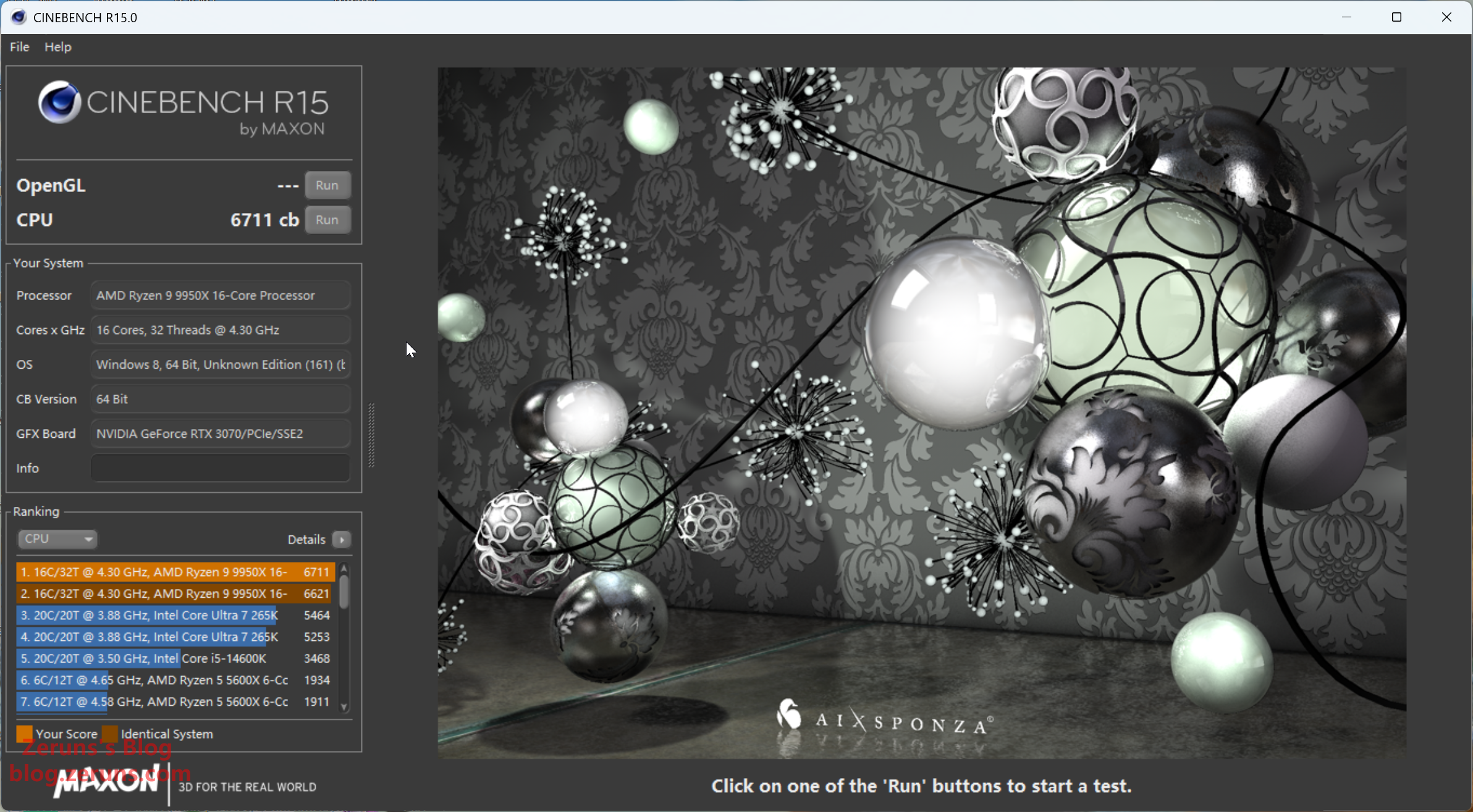
CINEBENCH_R15 benchmark: 6,711cb, while my old 265K processor scored 5,464cb. The 9950X is 22.8% higher than the 265K.

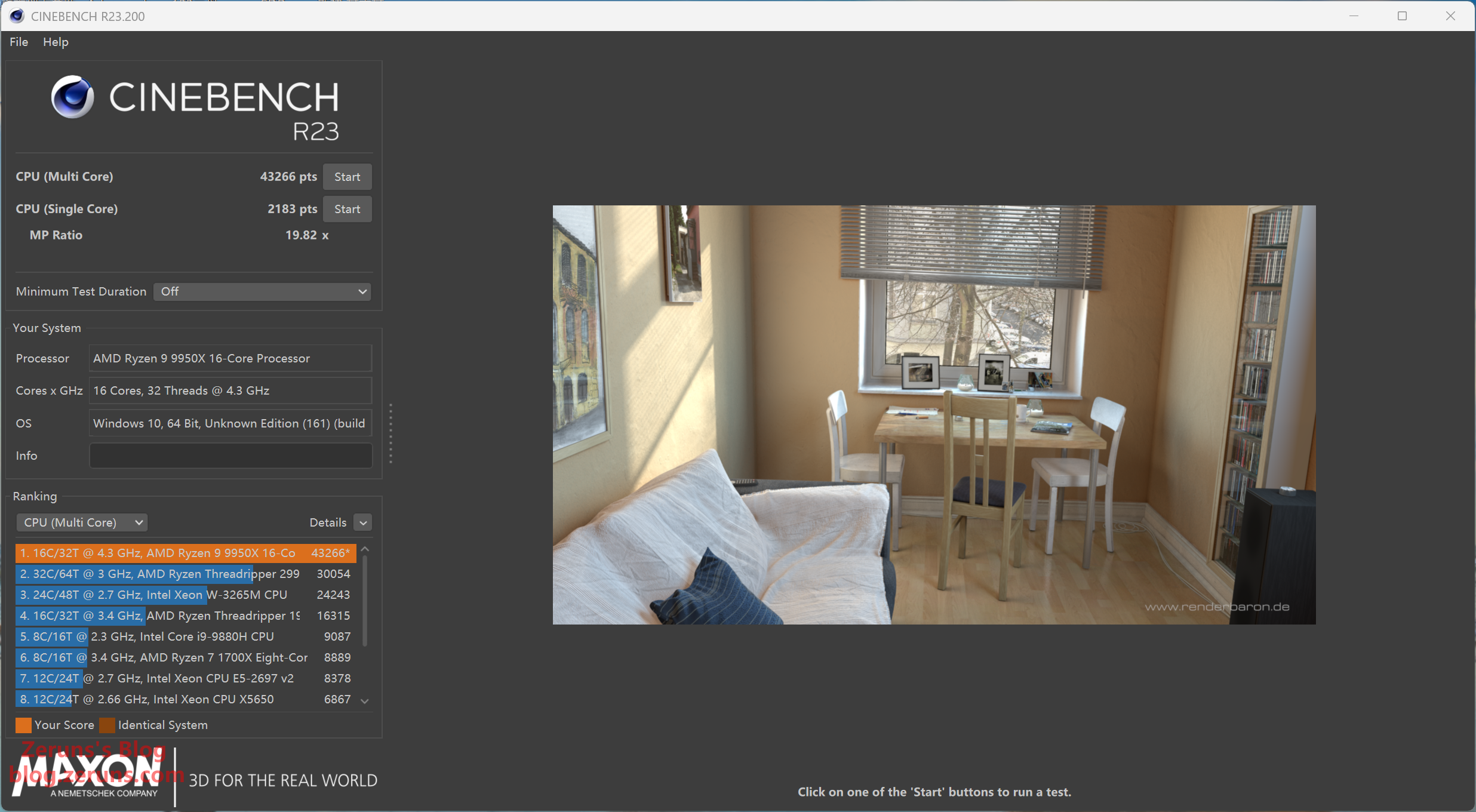
CINEBENCH_R23 benchmark: 2,183pts single-core and 43,266pts multi-core, while my old 265K processor scored 35,187pts. The 9950X is 22.9% higher than the 265K.

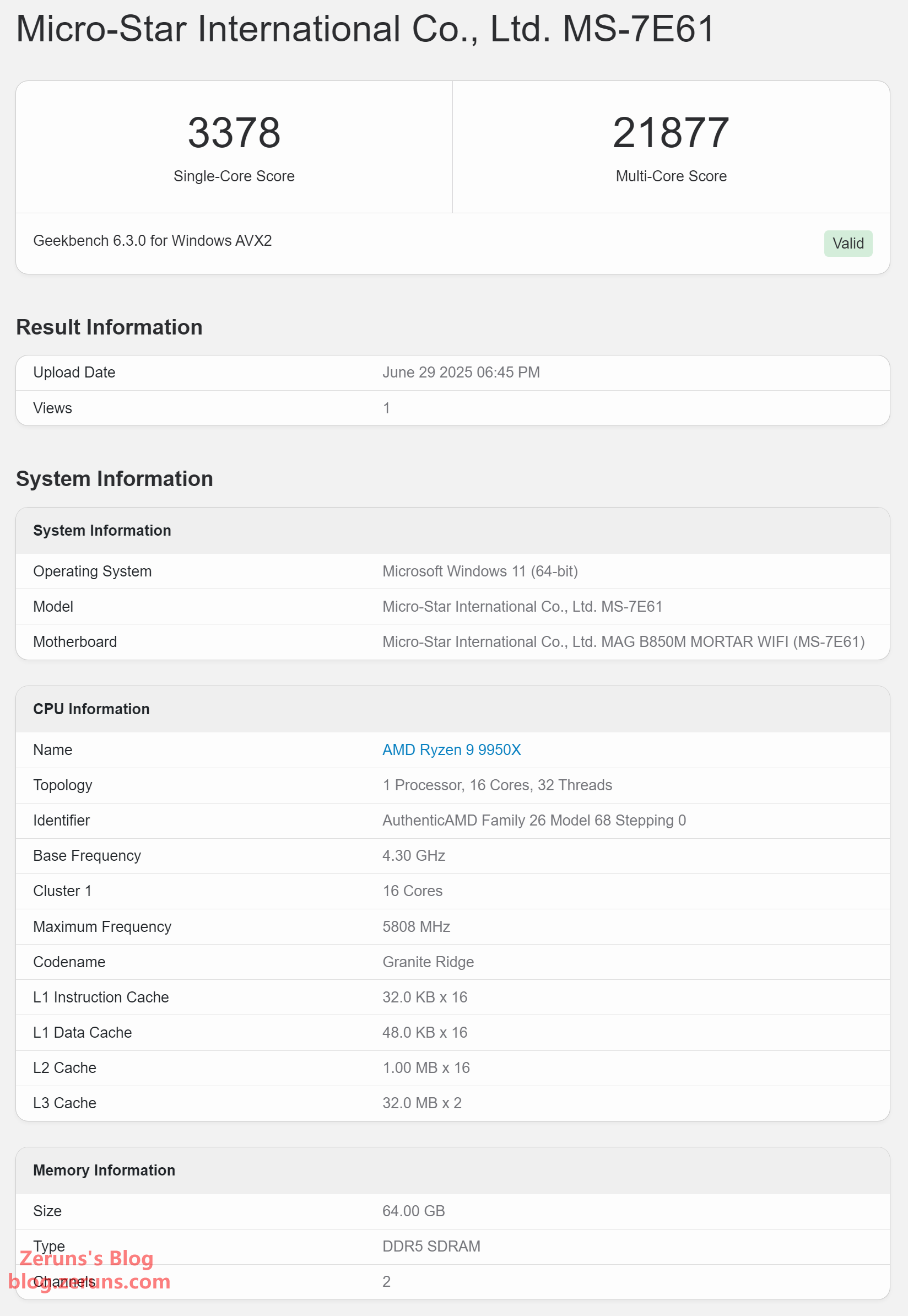
Geekbench 6 CPU benchmark: 3,378 points single-core and 21,877 points multi-core, while my old 265K processor scored 3,184 points single-core and 21,833 points multi-core. The two results are about the same.
Full test report: https://url.zeruns.com/q7E2f

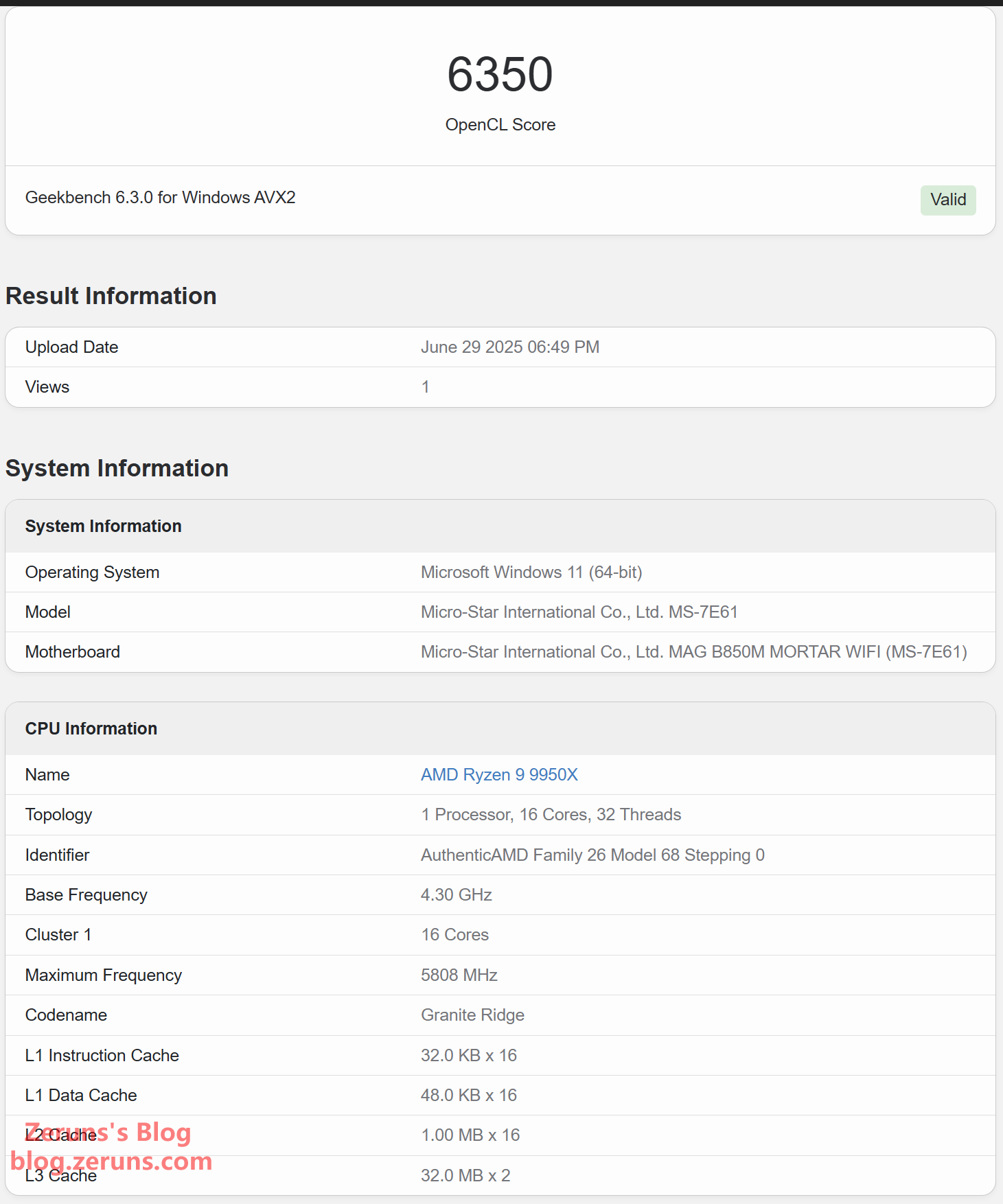
Geekbench 6 integrated graphics benchmark, OpenCL: 6,350 points, while my old 265K processor scored 20,595 points. The 9950X is 69% lower than the 265K.
Full test report: https://url.zeruns.com/0ofsw

Total System Power Consumption
The graphics card is an RTX 3070.
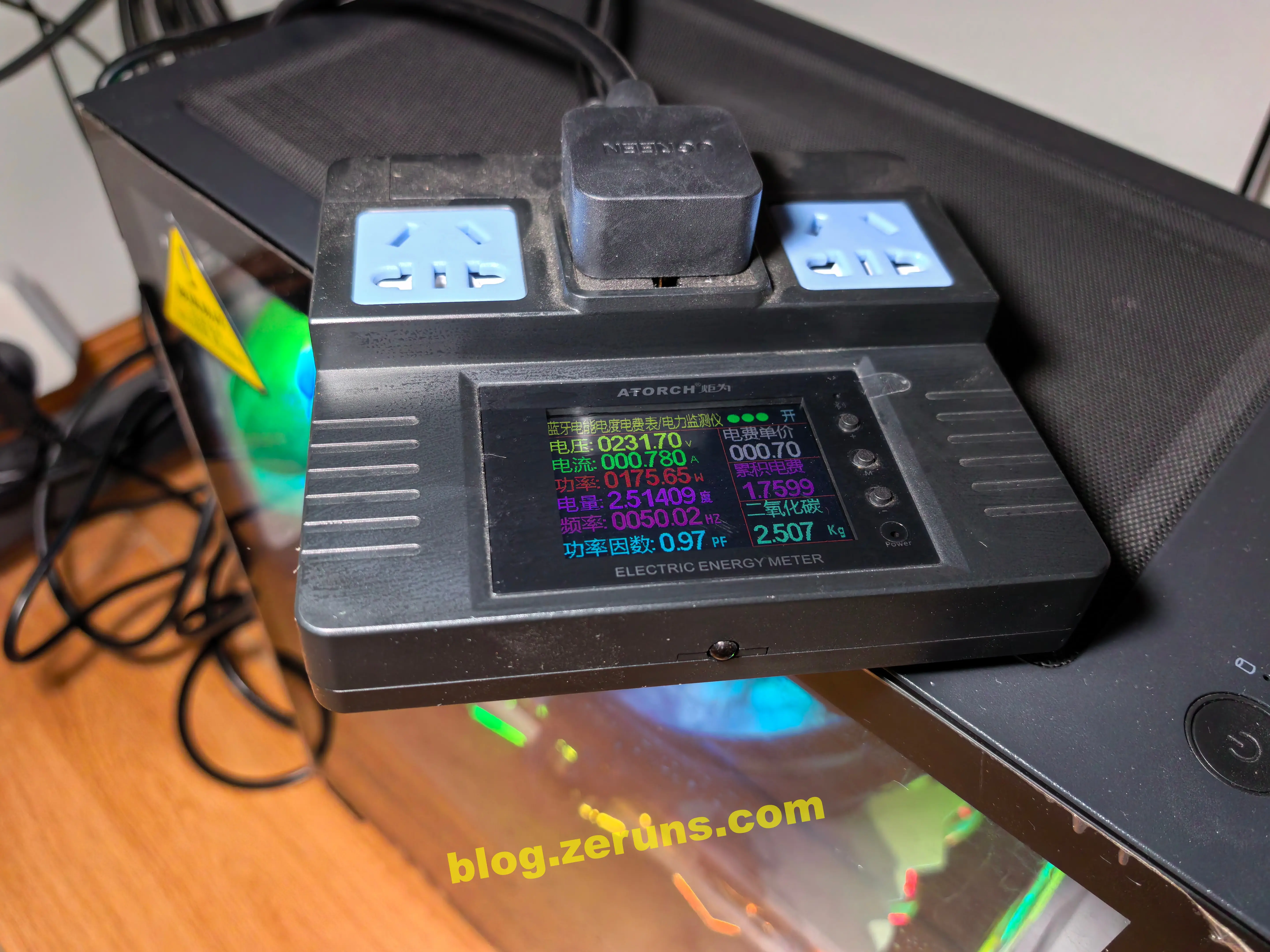
In the BIOS screen, total system power consumption is around 175W.

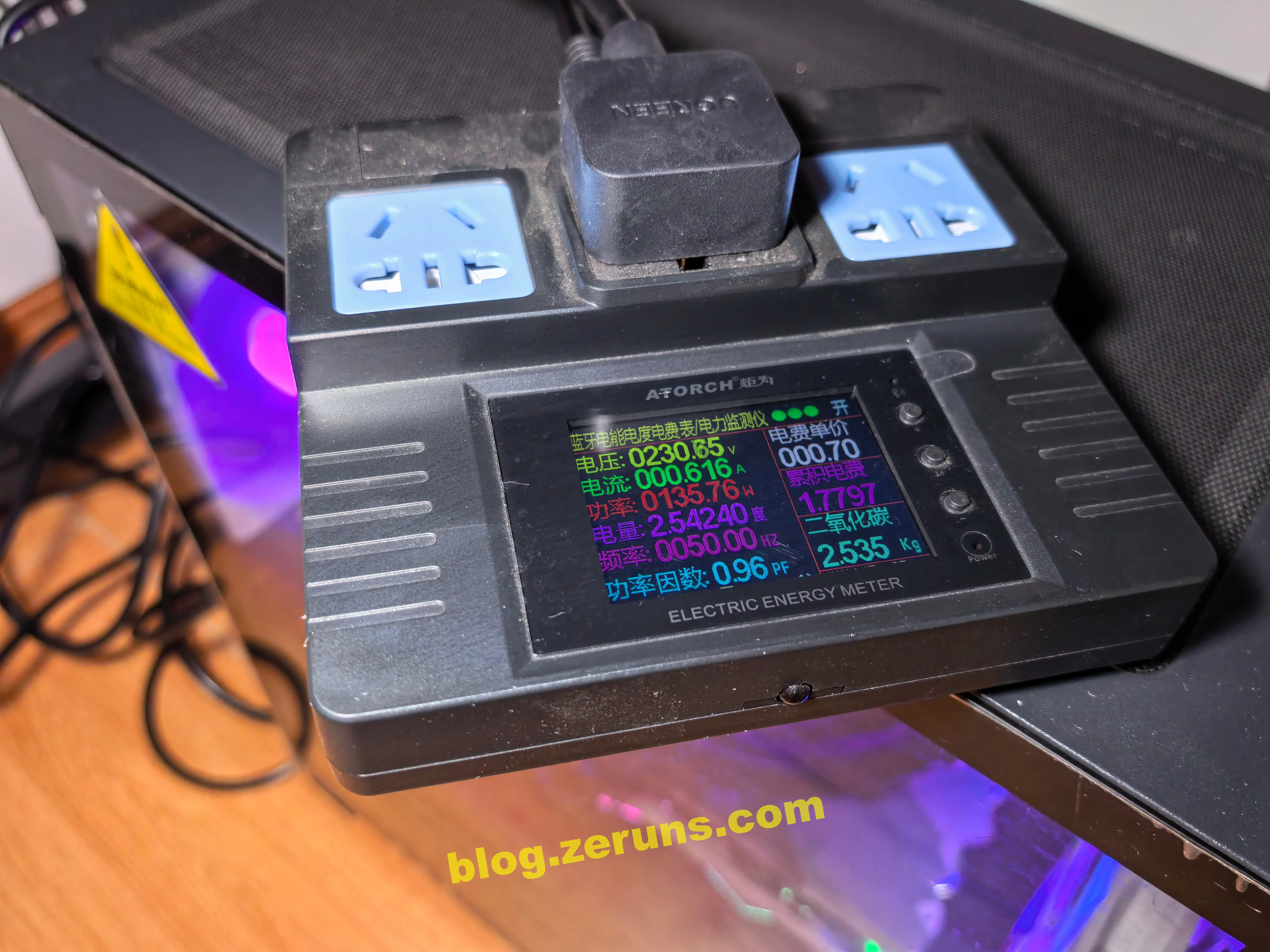
After entering Windows 11, total system power consumption at idle is around 135W.

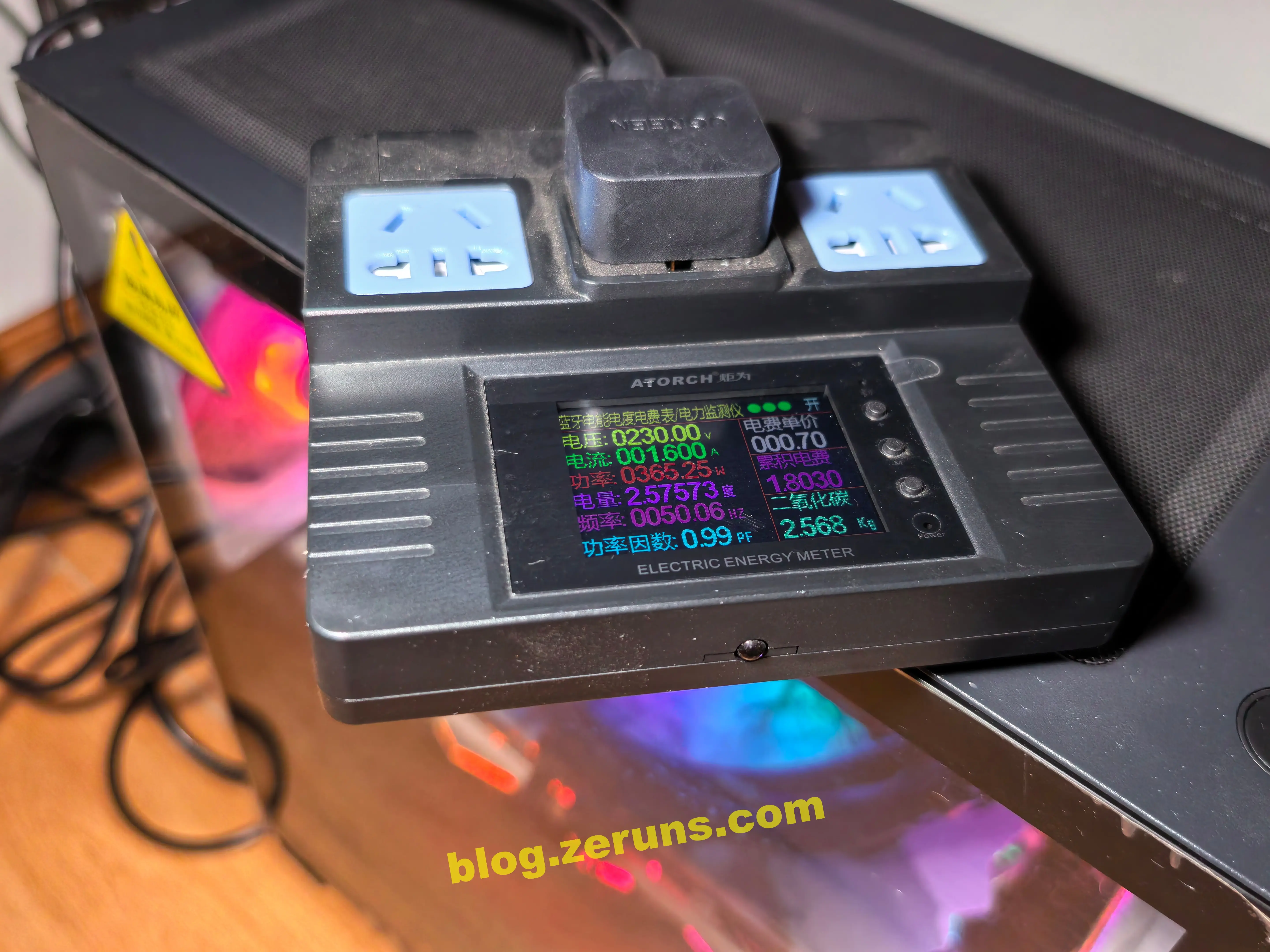
During CPU-only stress testing, when the CPU is fully loaded, total system power consumption is around 365W.

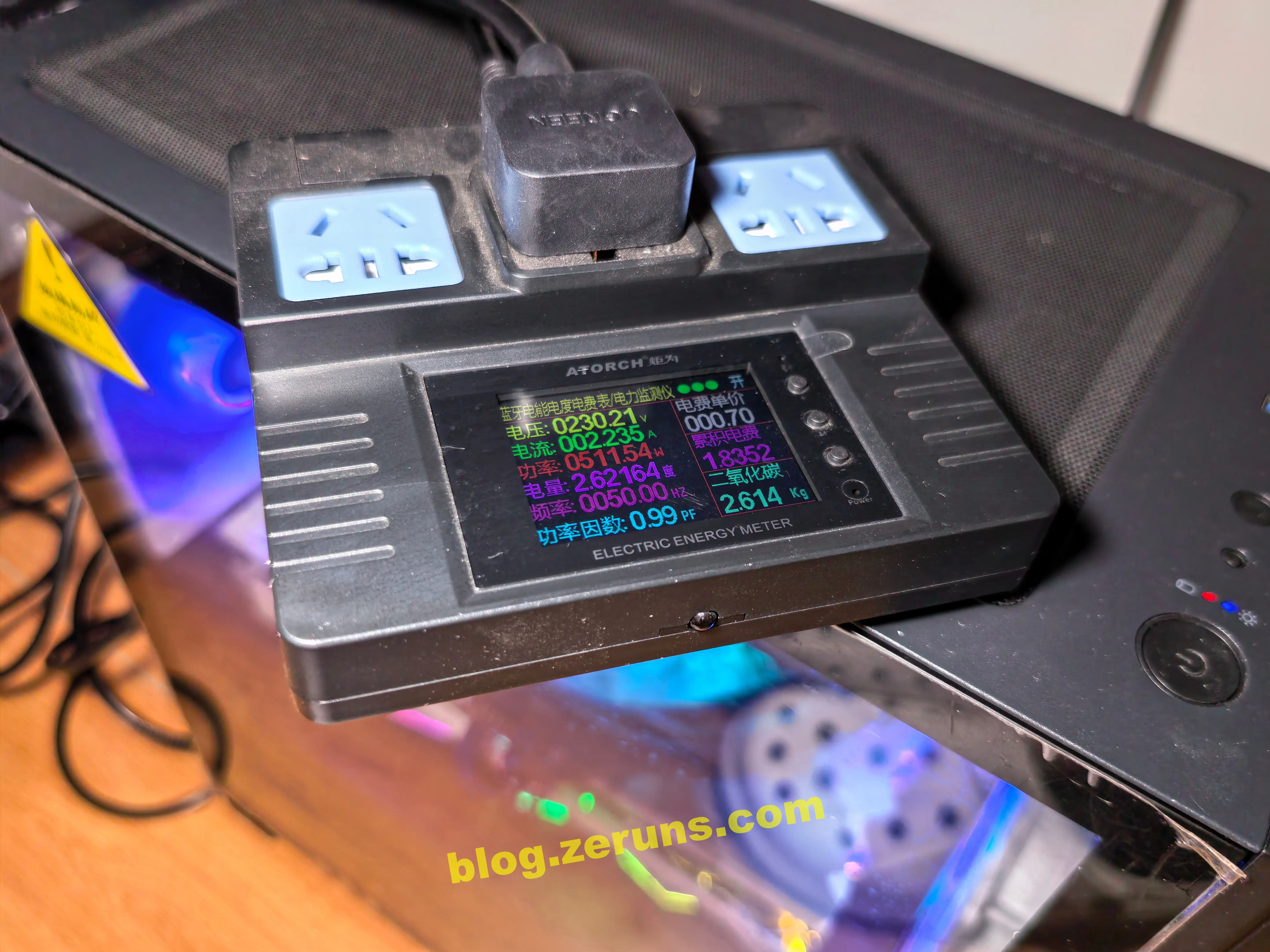
During dual stress testing, when both the CPU and graphics card are fully loaded, total system power consumption is around 511W.

Recommended Reading
- Recommended Cost-Effective and Cheap VPS/Cloud Servers: https://blog.zeruns.com/archives/383.html
- Minecraft server setup tutorial: https://blog.zeruns.com/tag/mc/
- Tutorial for setting up a PHP website on Yuyun RCA Cloud Application (based on K8s): https://blog.zeruns.com/archives/869.html
- Beginner-friendly tutorial for one-click deployment of a Halo blog with the 1Panel panel | Tutorial for setting up a corporate website/personal blog: https://blog.zeruns.com/archives/858.html
- Adding a coulomb counter to an electric bike; a record of the installation process: https://blog.zeruns.com/archives/879.html
- STM32-based synchronous rectification Buck-Boost digital power supply open source: https://blog.zeruns.com/archives/791.html
English Version of the Article: https://blog.zeruns.top/archives/61.html