Rock Pi 4C 线刷烧录 Armbian 系统教程
前言
闲鱼上400元收了块Rock Pi 4C,我看网上资料有点少,写篇教程分享一下。
ROCK Pi 4 是瑞莎生产的一款基于国产芯片厂家瑞芯微RK3399的单板计算机。它可以运行Android和Linux系统。 ROCK Pi 4拥有一个64位6核处理器(A72*2+A53*4),64位双通道3200Mb/s的LPDDR4内存,HDMI最高输出4K@60帧,另外还有CSI摄像头和DSI屏接口,双频ACWiFi和蓝牙5.0,四个USB接口,千兆以太网,40PIN扩展GPIO接口。ROCK Pi 4采用USB type C接口供电,支持USB PD协议和高通QC协议。
官方wiki:https://url.zeruns.com/rockpi4_wiki
准备
(此方式适用于rock pi 4A/B/C烧录Armbian/Debian/Ubuntu/Android的固件)
- 公对公USB线一根 (不能是一头Type-C的线连接到电脑的Type-C接口,必须是双公头的USB线)
- EMMC模块一个
- 电源适配器
- ROCK Pi 4 主板
Armbian/Debian/Android10系统下载(Rock Pi 4C的):https://url.zeruns.com/rockpi4_bdy 提取码:5y5w
Rock Pi 4C 系统固件 官方下载地址:https://url.zeruns.com/Rockpi4
安装工具和驱动程序
第一步:安装AndroidTool
首先下载本工具的压缩包:https://url.zeruns.com/f47S5 提取码:82oi
下载后解压。安装完成。
第二步:安装驱动
使用RK驱动助手工具安装驱动。
在此过程中无需连接您的 Rockchip 设备,只需下载并解压:https://url.zeruns.com/D1tBE 提取码:6fds
然后双击 DriverAssistant 目录中的 DriverInstall.exe 运行安装程序。如果您已经为任何其他 Rockchip 设备安装了 Rockchip USB 驱动程序,请确保先单击“驱动卸载”。
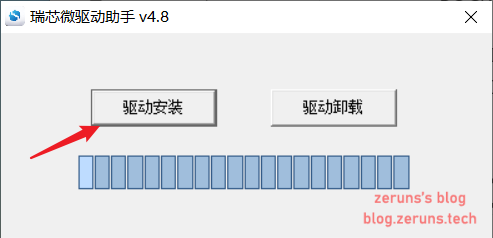
安装完驱动后重启电脑。
将ROCK Pi引导至 maskrom 模式
启动 ROCK Pi 进入 maskrom 模式很简单,你不需要按任何键
1.将板子断电并 移除所有可启动存储介质 ,拔掉 microSD 卡,拔掉 eMMC 模块。
2.将公对公USB线插入ROCK Pi 4 OTG端口(最上面的USB3.0端口),另一端连接PC
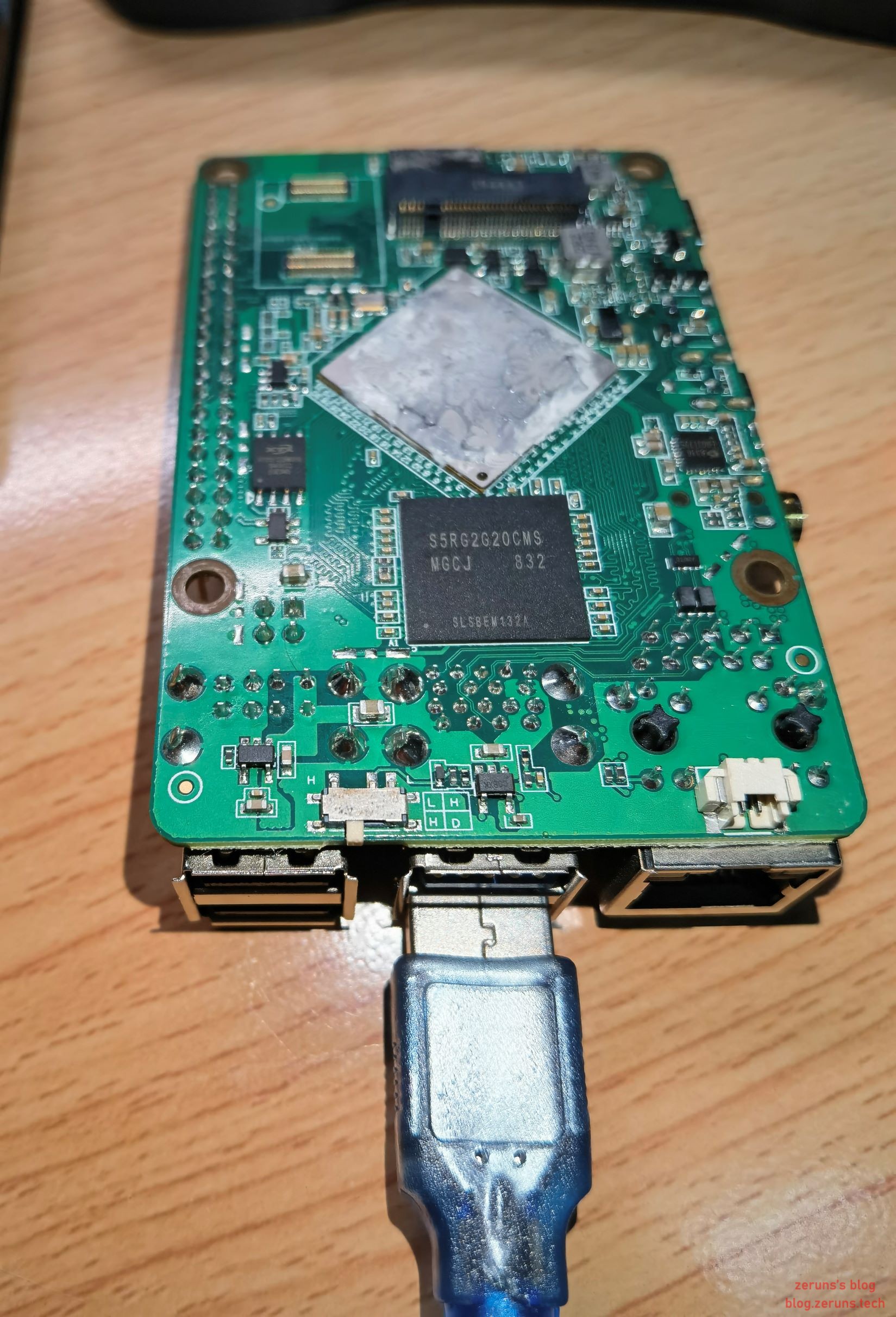
3.给板子上电,插上Type-C供电。
打开设备管理器,检查设备管理器:
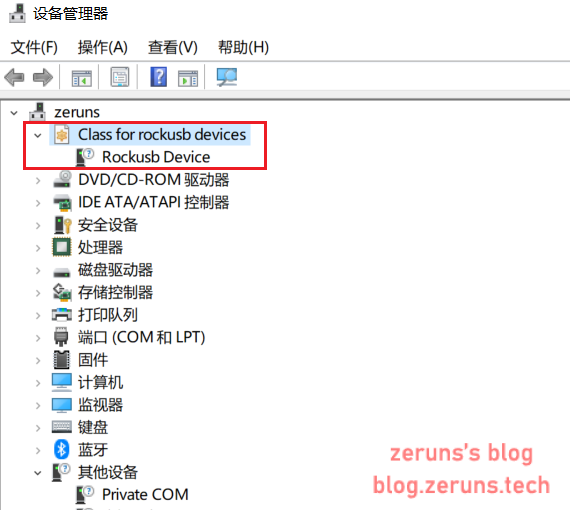
这意味着设备现在处于maskrom 模式。
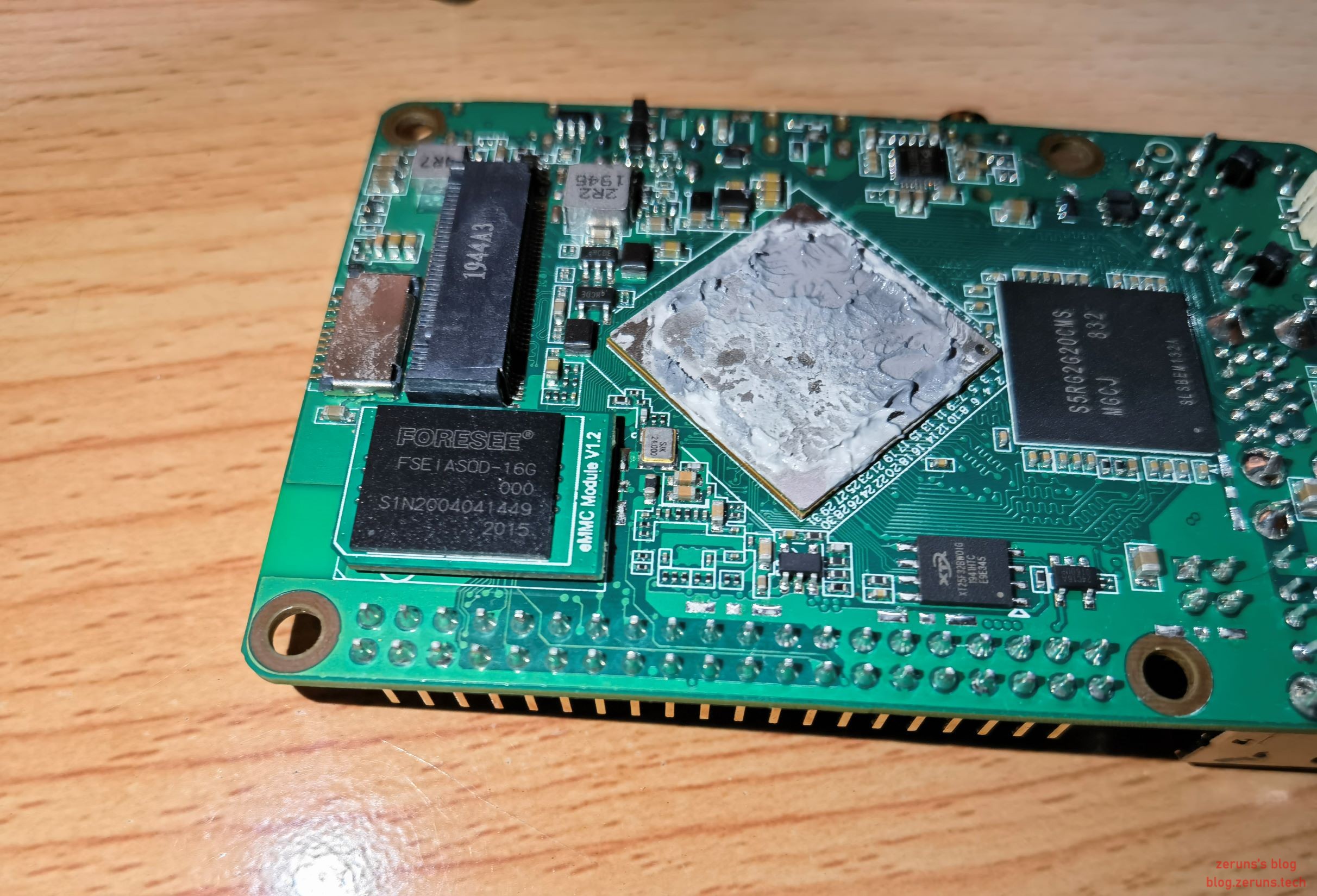
5.现在插上eMMC模块,继续下一步刷机。
开始安装系统
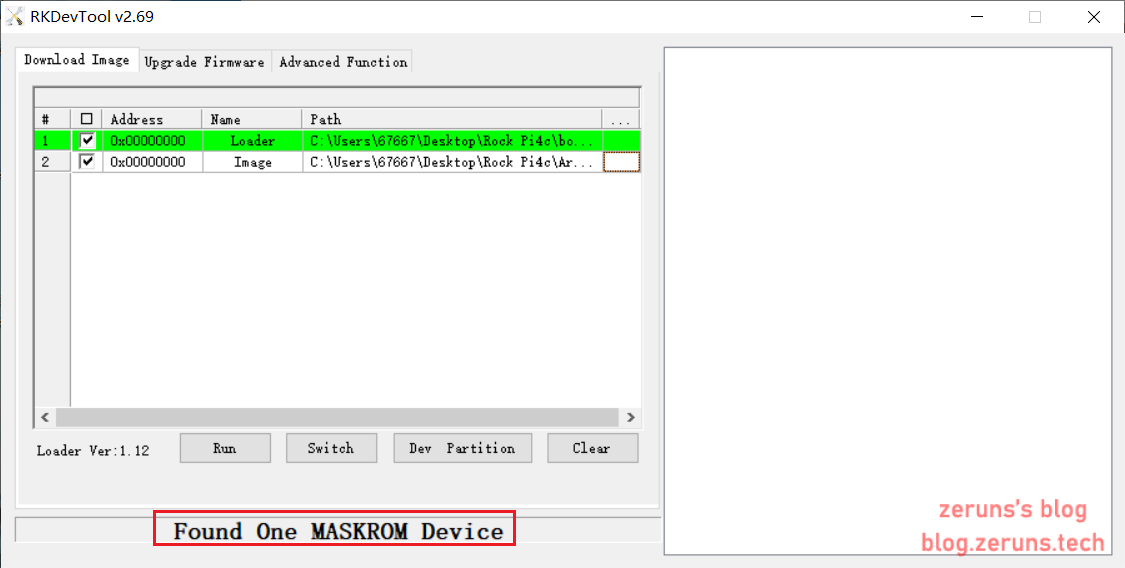
打开AndroidTool.exe,你会看到如下界面: 如果你的ROCK Pi处于maskrom模式并连接到电脑,你可以看到程序检测到它,如下图红框所示:
第 1 步:选择Loader
Loader(flash helper)是用于初始化ram和准备flash环境等。
Loader下载地址:https://url.zeruns.com/DGCuL 提取码:tc71
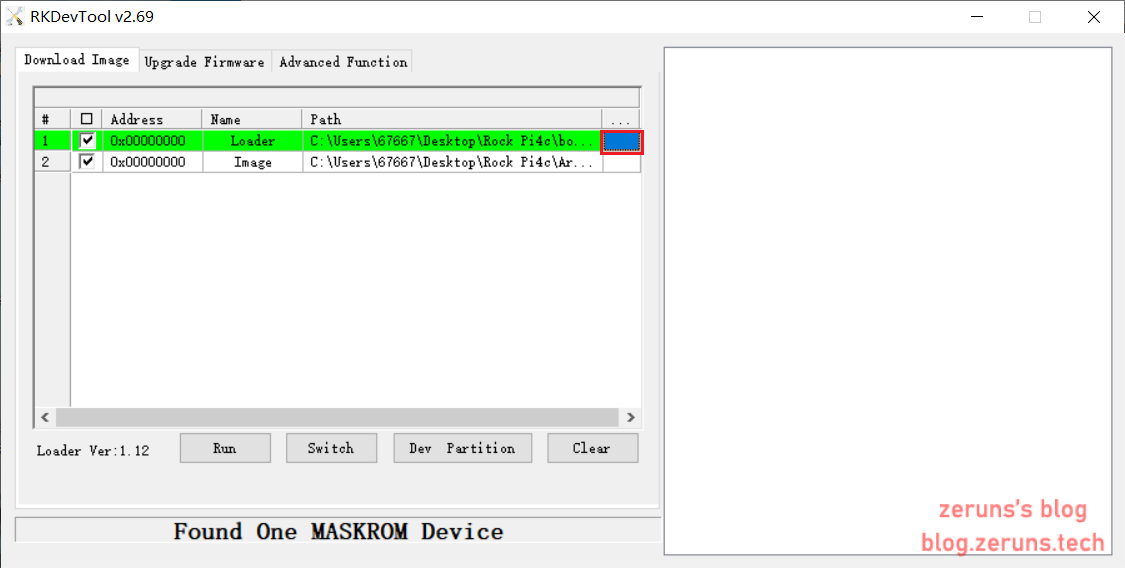
接下来,点击右边最后一栏红框中的按钮选择Loader “rk3399_loader_xxxxx.bin”,
第 2 步:选择系统固件
然后在 Image 行中单击右侧的最后一列,然后选择要烧录的系统镜像(在文章开头给出的链接里下载Armbian开头的文件)。
注意:通常系统镜像名称应以 xxx-gpt.img 结尾。如果镜像名以xxx-rkupdate.img结尾,则不能用此方法刷机。
第 3 步:写入
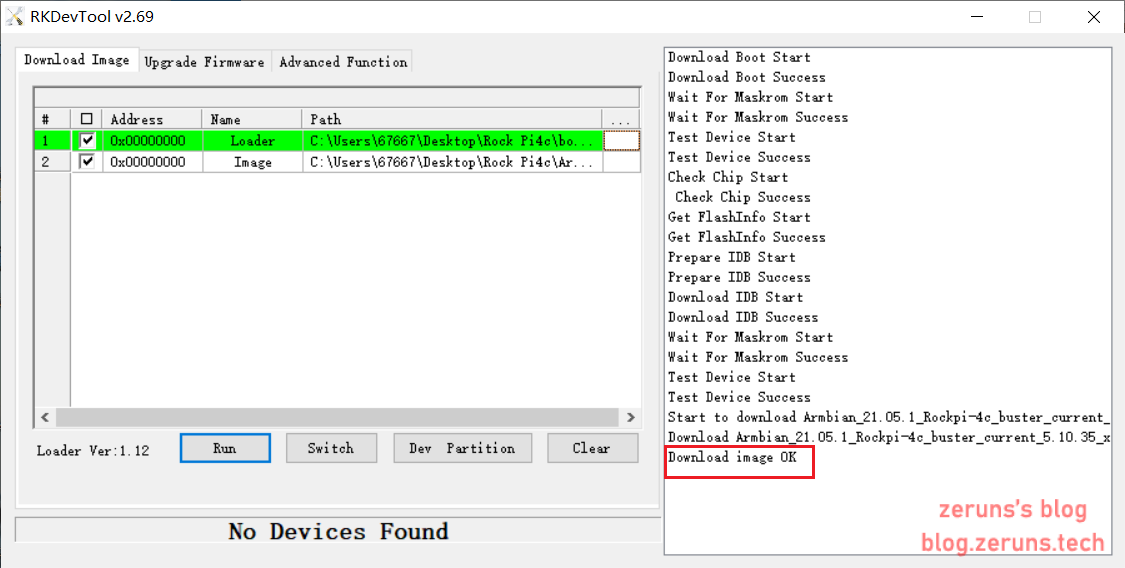
最后点击下方红框中的“run”按钮,就会看到右侧红框中的内容了。当进度达到 100% 时,下载完成。
进入系统
接上显示器,键盘鼠标,通电,然后等待一会。
然后进入到下图这个页面,接着按照提示输入,首先输入的是要设置的root账号的密码,要输入两次密码,密码要包含大写和小写字母以及数字和标点符号;接着选择shell,输入 1 选择bash就好;然后输入要创建的普通用户的用户名,还有密码。
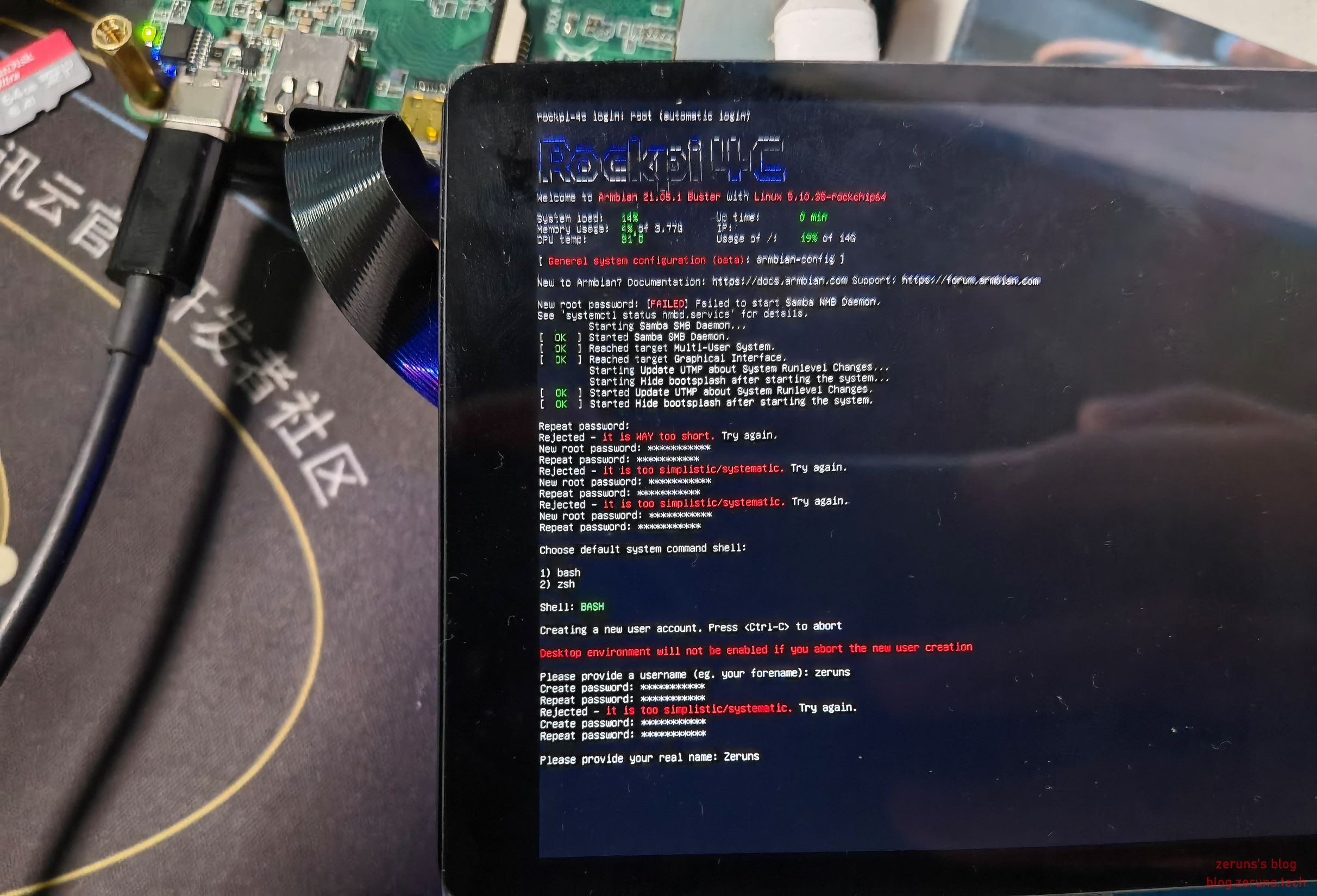
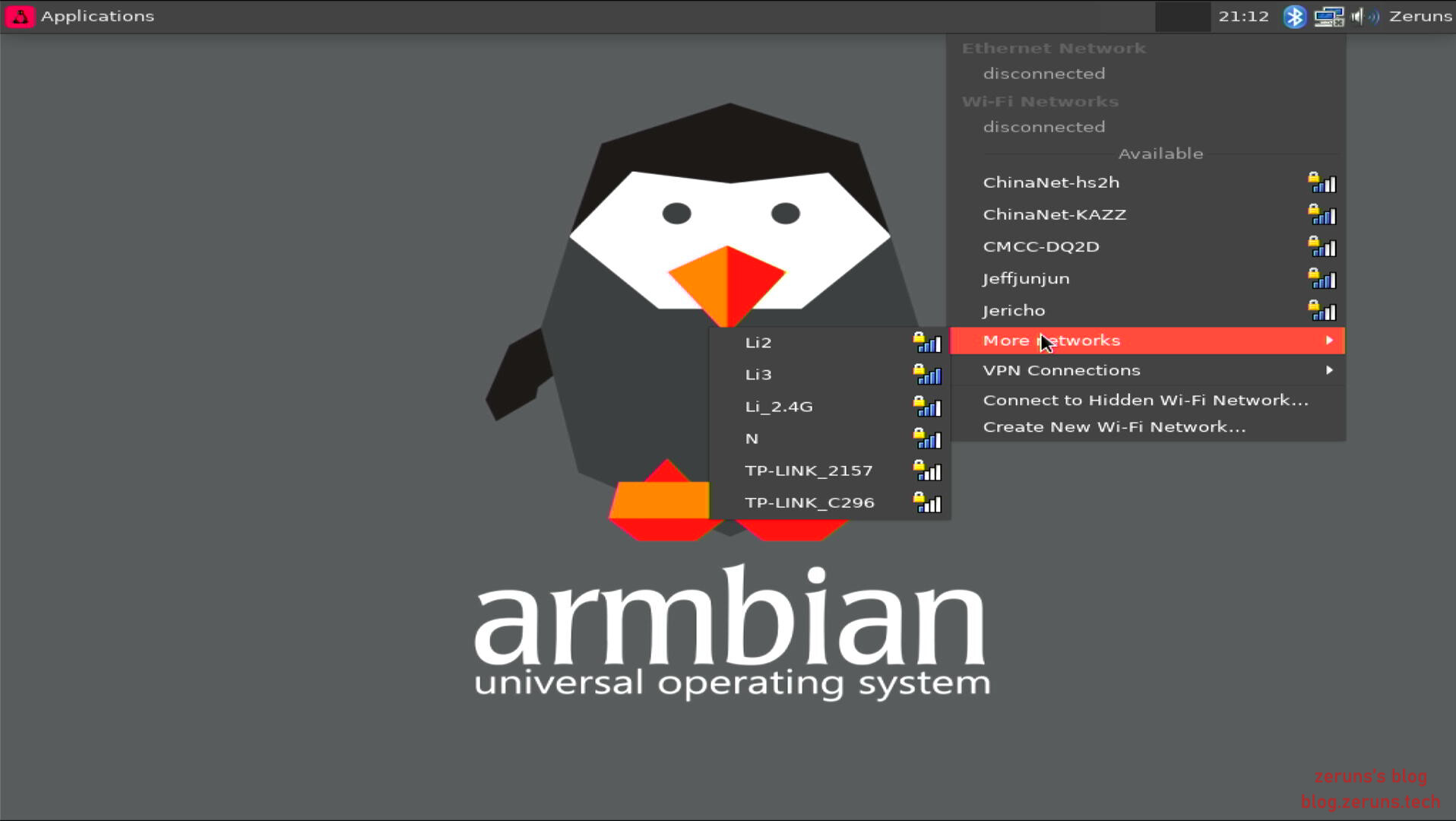
设置完成后就会进入到桌面,可以通过网线或WiFi联网,然后自己开启SSH就好。
推荐文章
- 高性价比和便宜的VPS/云服务器推荐:https://blog.zeruns.com/archives/383.html
- Linux系统挂载U盘或硬盘教程(查看、分区、格式化、挂载):https://blog.zeruns.com/archives/629.html
- 学生优惠权益大全:https://blog.zeruns.com/archives/557.html
- 使用阿里云搭建网站并实现站库分离:https://blog.zeruns.com/archives/513.html
- 怎样搭建个人博客:https://blog.zeruns.com/archives/218.html
- Linux搭建甜糖星愿服务,挂机赚钱:https://blog.zeruns.com/archives/628.html
